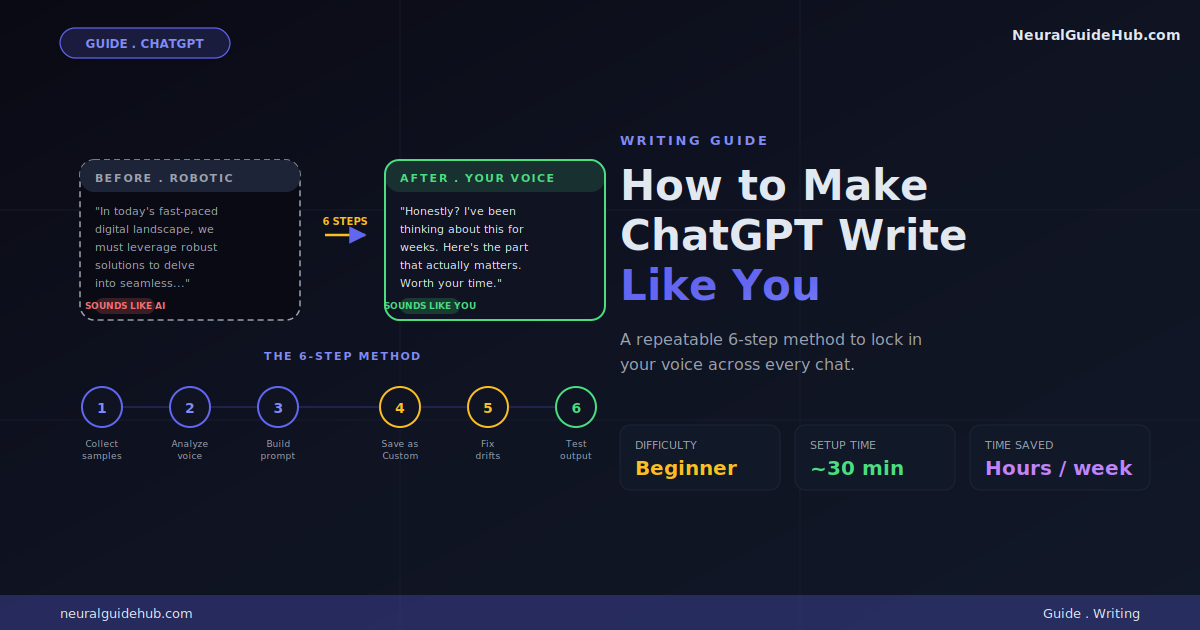
I used to repeat myself to Claude every single day. The same context. The same files. The same “this is for my newsletter” preamble. Hours per week wasted on setup. Then I figured out Projects properly. Now I open a chat and just ask. Claude already knows. Already has my files. Already understands the tone. If you want to use Claude Projects the way they actually save time, this post walks through what worked for me. Not theory. The real setup I run every day.
Quick disclaimer. I’m not a power user trying to flex. I write online. I run a small site. I use Claude as a workhorse for drafts, research, coding help. So this isn’t “10 advanced Claude tricks for engineers.” It’s the boring practical stuff that ends up saving the most time.
What You’ll Learn
- What Claude Projects actually does (and what it doesn’t)
- The five Projects I keep running every week
- How to structure project knowledge so Claude remembers what matters
- Custom instructions that take Projects from good to actually useful
- The mistakes I made early on so you can skip them
- How much time this saves in a normal week (real numbers)
What You Need
A Claude Pro subscription. The free tier doesn’t include Projects. Pro is $17 a month annually, $20 monthly. About 30 minutes for the initial setup. Then you save hours every week after.
That’s it. No external tools. No automations.
What Claude Projects Actually Is
Quick context if you haven’t used Projects yet. A Project is a workspace inside Claude. Each one has its own files, its own custom instructions, and its own chat history. You can have many Projects running at once. They don’t talk to each other. Each is its own world.
The two things that make Projects different from regular chat:
- Project knowledge. Files you upload once. Claude reads them in every chat inside that Project. No re-uploading.
- Custom instructions. Per-project. So your “newsletter” project can have different rules than your “code” project.
That’s the whole feature. Sounds simple. Game-changing in practice once you set it up right.
The Five Projects I Run Every Week
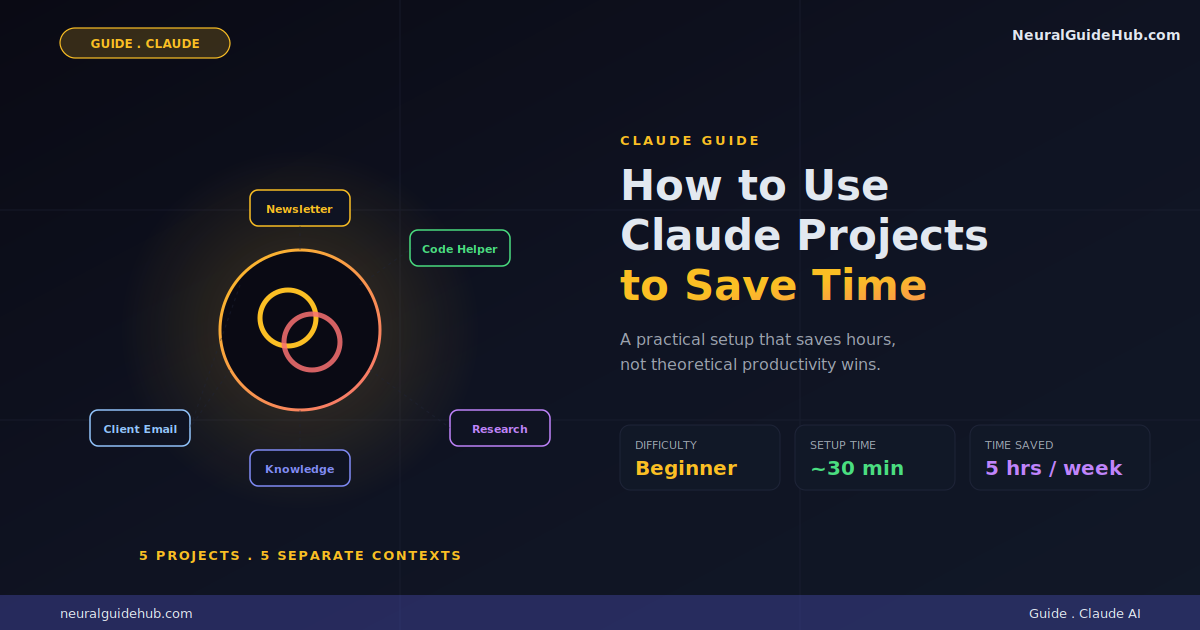
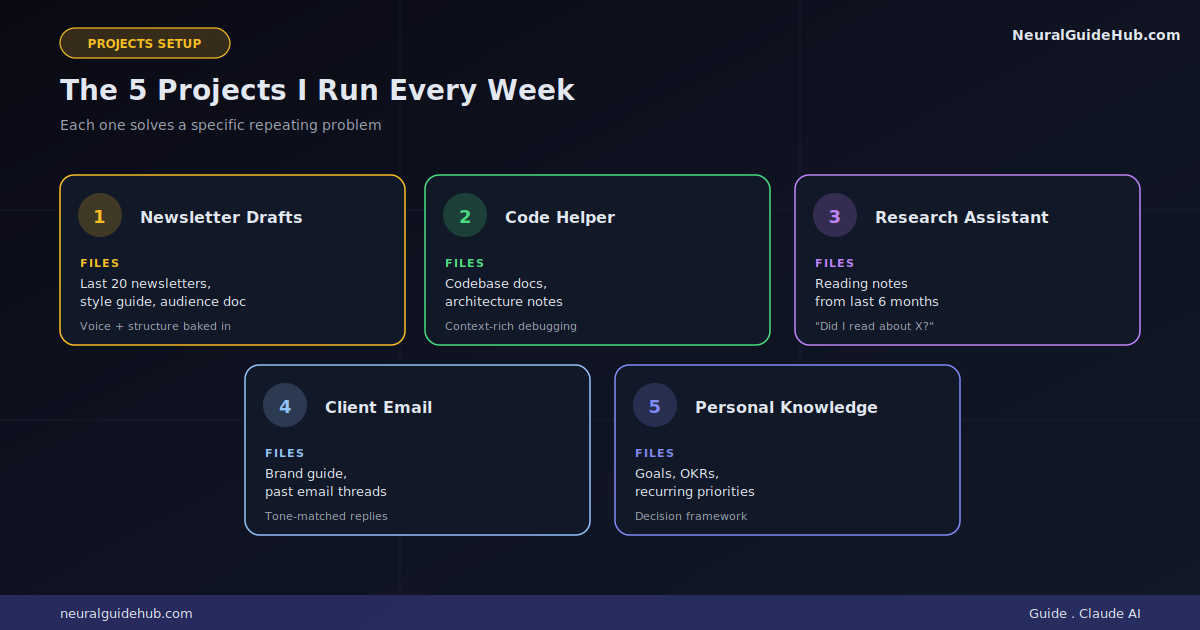
Before getting into setup details, here’s how I actually use this. Five Projects. Each one solves a specific repeating problem.
1. Newsletter Drafts. Has my last 20 newsletters as files. Custom instructions describe my voice and structure. When I open a chat, I just say “draft this week’s intro about X.” Claude already knows what my newsletters look like.
2. Client Email Replies. Has my client’s brand guide, our previous email threads, and a custom instruction about tone. When a tough email comes in, I paste it. Claude drafts a reply that fits.
3. Code Helper. Has my codebase docs and architecture notes. When I’m stuck on something, I describe the problem. Claude already has the context.
4. Research Assistant. Has my reading notes from the last six months. When I’m working on a new piece, I can ask “did I read anything about X?” Claude actually finds it.
5. Personal Knowledge Base. Has my goals doc, OKRs, recurring projects. Useful for “given my priorities this quarter, should I take on this new thing?” decisions.
How to Set Up Your First Project
Easier than you’d think. The whole process takes about 10 minutes.
Step 1: Create the project. Click “Projects” in the sidebar. Hit “Create Project.” Give it a clear name. “Newsletter Drafts” beats “Project 1” by a mile.
Step 2: Add custom instructions. This is where most people skimp. Don’t. The custom instructions field is where you describe what this project is for, how Claude should respond, and what voice to use. Treat it like a job description for an assistant.
Step 3: Upload project knowledge. Files Claude reads in every chat. Be selective. More files isn’t always better. Five high-quality reference files beat 50 random ones every time.
Step 4: Test with a real task. Don’t just admire your setup. Open a chat. Ask Claude to do an actual thing. See if the response uses your project knowledge. If not, tweak the custom instructions or swap in better files.
Step 5: Iterate weekly. The first version is rarely the best one. Pay attention to what works and what drifts. Adjust as you go.
What to Put in Custom Instructions
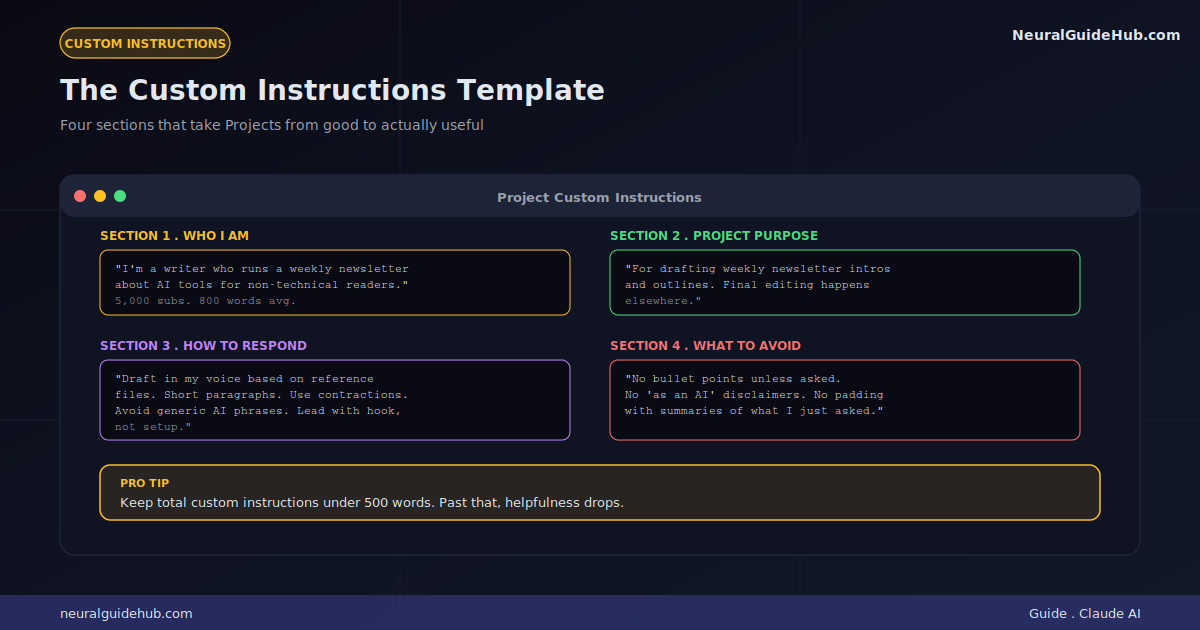
This is the part most people get wrong. They write something vague like “help me with my newsletter.” Useless. Custom instructions should be specific enough that a stranger reading them could roughly do your job.
Here’s the structure I use:
Who I am. “I’m a writer who runs a weekly newsletter about AI tools for non-technical readers. About 5,000 subscribers. Average issue is 800 words.”
What this project is for. “This project is for drafting weekly newsletter intros and outlines. Final editing happens elsewhere.”
How to respond. “Draft in my voice based on the reference files. Keep paragraphs short. Use contractions. Avoid generic AI phrases. Lead with a hook, not a setup.”
What to avoid. “Don’t use bullet points unless I ask. Don’t add disclaimers about being an AI. Don’t pad responses with summaries of what I just asked.”
Each of those four sections gets specific. The more concrete, the better the output.
What Files to Upload as Project Knowledge
Quality beats quantity here. Five sharp files do more than 50 random ones. Here’s the rule I follow: every file in a Project should answer “what would Claude need to do this work well?”
For my newsletter Project:
- 10 of my best past newsletters (voice reference)
- A style guide doc I wrote (tone rules, banned phrases, structure)
- A list of topics I cover and topics I don’t (so Claude doesn’t drift)
- A target audience description (who reads this and why)
That’s four files. Total. Claude has more than enough context now to draft something usable on the first try.
The mistake I made early: uploading every newsletter I’d ever written. Forty-something files. Claude got confused. Outputs drifted toward random patterns from old issues. Less is more.
The Mistakes I Made Early
Saving you the time:
Mistake 1: Too many Projects. Started with 12. Most never got opened twice. Killed nine. Five is my sweet spot.
Mistake 2: Vague custom instructions. “Help me write better” did nothing. Specific job-description-style instructions changed everything.
Mistake 3: Treating files as the whole context. Files matter. Custom instructions matter more. The ratio that works for me is roughly 70% custom instructions effort, 30% file curation.
Mistake 4: Not updating as I go. Set it and forget it doesn’t work. Every few weeks I open each Project and ask “is this still doing what I need?” Usually I tweak the instructions.
Mistake 5: Mixing too many tasks in one Project. Newsletter and client work in the same project? Bad idea. Tone bleeds. Context confuses. Separate concerns. Separate Projects.
The Time I Actually Save
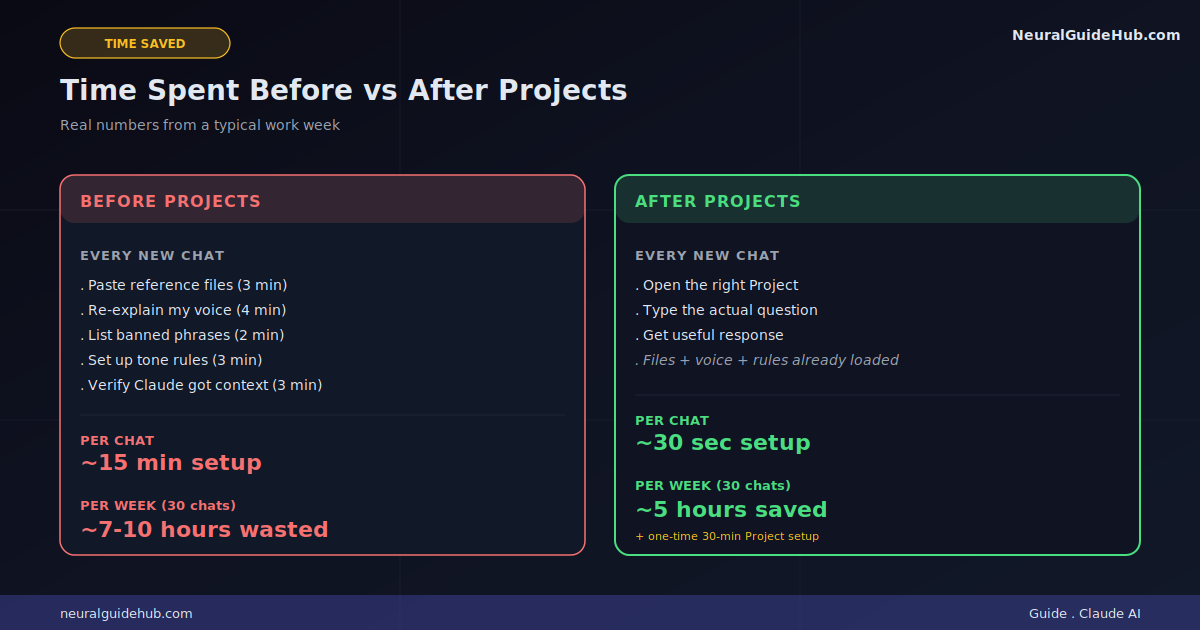
Real numbers from my own work. Before Projects, I’d spend roughly 15 to 20 minutes setting context every time I started a new chat. Pasting files. Re-explaining tone. Reminding Claude about my style. Multiply that by maybe 30 chats a week. That’s 7 to 10 hours a week just on setup.
After Projects? Setup happens once, when I create the Project. Then every chat starts at zero context cost. Open chat, ask question, work happens.
Conservative estimate of saved time: 5 hours a week. That’s a workday. Every week. Claimed back from the void.
Even if you only build one Project well, you’ll save real hours. Two well-built Projects probably save you a full day a week. The math gets ridiculous fast.
Pro Tips That Actually Move the Needle
- Review project knowledge monthly. Files go stale. The newsletter you wrote six months ago might not represent your voice anymore. Swap it.
- Use one specific custom instructions trick: ban your AI-tells. List the words and phrases you’ve noticed Claude using too much. Drift drops noticeably.
- Don’t over-document. Custom instructions over 500 words start hurting more than helping. Be ruthless.
- Test with edge cases. Ask Claude to do something the Project wasn’t built for. See how it responds. Tells you a lot about whether your setup is too narrow or just right.
- Name Projects so future you knows what they’re for. “Q4 newsletter drafts” beats “Newsletter.” Specificity helps.
- Keep a meta-doc. I have a file that lists what each Project is for and when I last updated it. Saves “wait, what’s in this one again?” moments.
Common Mistakes to Avoid
- Treating Projects as glorified folders. They’re not. They’re context anchors. Use them that way.
- Skipping custom instructions. The single highest-impact thing. Don’t skip.
- Uploading raw, unedited files. If a file has stuff that’s irrelevant or contradictory, edit it before uploading. Garbage in, garbage out.
- Hoarding Projects. If you haven’t opened it in three weeks, kill it. Active maintenance beats long inventory.
- Mixing personal and work in one Project. Different tones. Different rules. Different Projects.
Next Steps
Realistic week one if you want to actually try this:
- Day 1: Pick your most repetitive Claude task. Build one Project for it.
- Day 2: Use it for real. Notice what doesn’t quite work.
- Day 3: Adjust custom instructions based on yesterday’s friction.
- Day 4: Add or swap one project knowledge file.
- Day 5: Build a second Project for a different task.
- Week 2: Iterate based on what’s actually getting opened.
Don’t try to build five Projects at once. The friction of setup will burn you out. One at a time. Build it. Use it for a week. See if it earns its place. Add the next one only when the first feels solid.
Here’s the thing nobody mentions about learning to use Claude Projects properly. It changes how you think about repetitive work. Anything you do more than three times in a row, you start asking: should this be a Project? Most of the time the answer is yes. The setup pays back fast.
Six months in, I have five Projects I actually use. Probably saved me 100+ hours so far. Setup time was maybe 3 hours total. The math is wild. Don’t overthink the first one. Just build it.