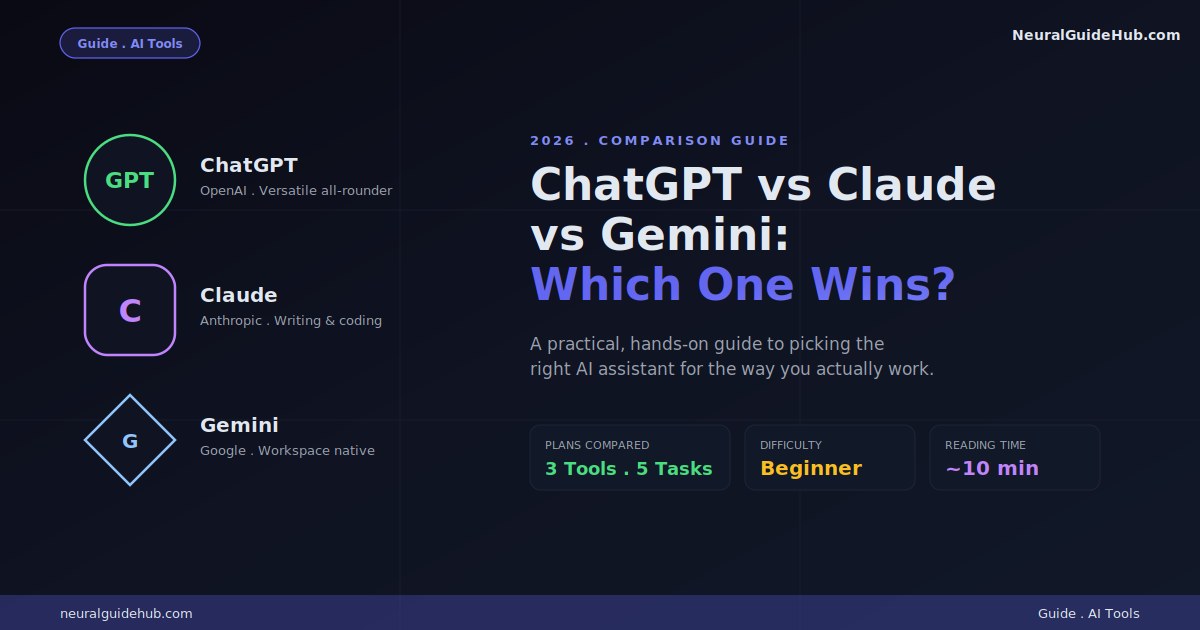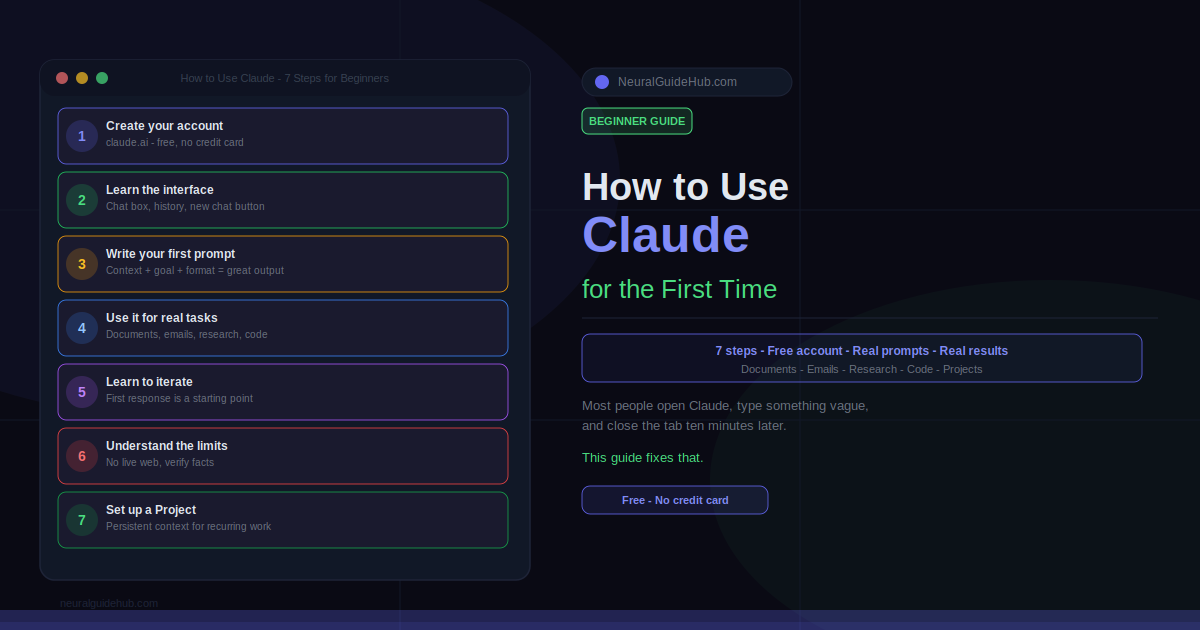
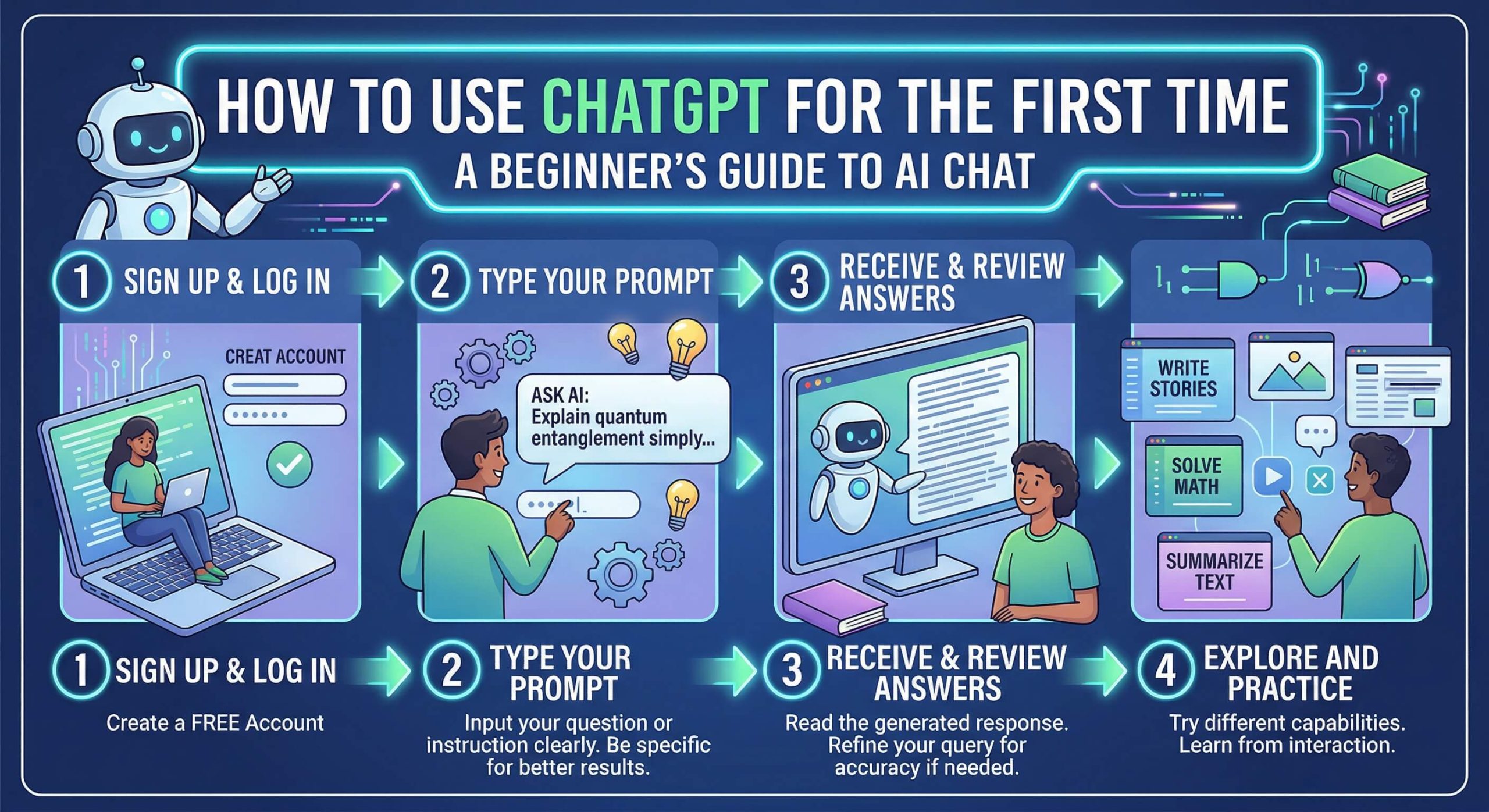
My friend called me two weeks ago. “I tried ChatGPT,” she said. “It’s useless.” I asked what she typed. “What should I cook for dinner.” It gave her a list of generic recipes and she closed the tab. Honestly? Same thing happens to almost everyone who opens it for the first time. Not because it’s a bad tool. Because nobody told them how it actually works before they touched it.
Here’s the thing about using ChatGPT for the first time: the tool itself is simple. What trips people up is the expectation. Most people treat it like a fancier Google. It’s not. It’s closer to having a smart colleague sitting next to you who reads everything you send and writes back. What you get out of it depends almost entirely on what you give it. Vague question, vague answer. Real question with real context, genuinely useful answer.
This guide covers exactly what to do from step one. Creating your account, learning what’s on the screen, writing your first prompt that actually works, and the few settings that make every conversation better from the start.
What You’ll Learn
- How to create a free ChatGPT account without a credit card, in about 3 minutes
- What the interface looks like and what each section actually does
- Why your first prompt probably won’t work, and the one fix that changes everything
- A 4-part formula for writing prompts that get useful results on the first try
- One setting that takes 2 minutes to configure and saves you time on every single conversation going forward
- What ChatGPT is genuinely bad at, so you don’t act on something it got wrong
What You Need
- An email address. Or a Google or Microsoft account if you’d rather use that.
- A browser. Chrome, Firefox, Safari, Edge. Go to
chat.openai.com. - Possibly a phone number. Some regions need it for verification. Worth having nearby just in case.
- No technical background needed at all. If you’ve used email or Google Docs, you’re already qualified.
Quick note on cost: the free plan is genuinely good. It gives you GPT-5.2 Instant, unlimited conversations, and saved chat history. No credit card. If you’re hitting limits after daily heavy use, ChatGPT Plus at $20/month adds stronger models, file uploads, and image generation. But spend a week on free first. Most beginners don’t need paid anything.
Step 1: Create Your Account and use ChatGPT for the First Time
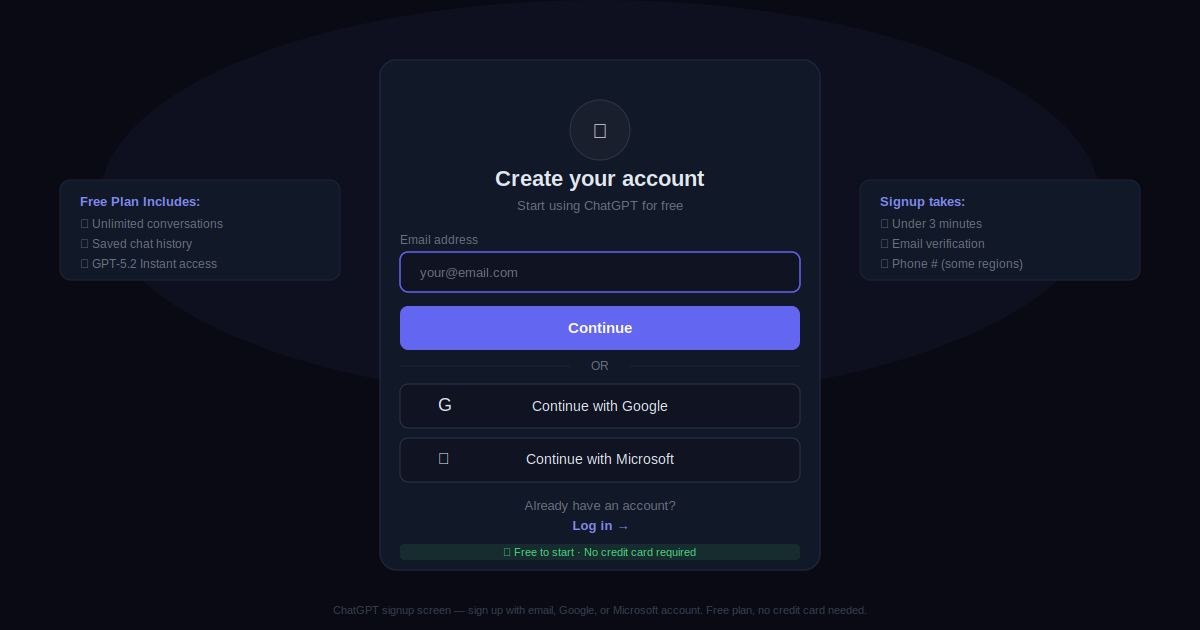
Go to chat.openai.com. Hit “Sign Up.” Three paths: email address, Google account, or Microsoft account. The Google route is the fastest if you have Gmail. Click it, follow the steps, verify your email when the confirmation comes in. That’s it. Under three minutes start to finish.
Once you’re in, you land on the main chat interface. No complicated setup. No tutorial you have to sit through. Just a page with a text box at the bottom.
One thing worth knowing before you start: OpenAI began showing ads on free accounts in early 2026. They show up between conversations, not while you’re mid-chat. Minor annoyance at worst. If it really bothers you, the $8/month plan removes them. But honestly, for learning the basics, just ignore them and move on.
Step 2: Take 60 Seconds to Learn the Screen
Before you type anything, look at what’s actually there. Takes a minute. Saves a lot of confusion later.
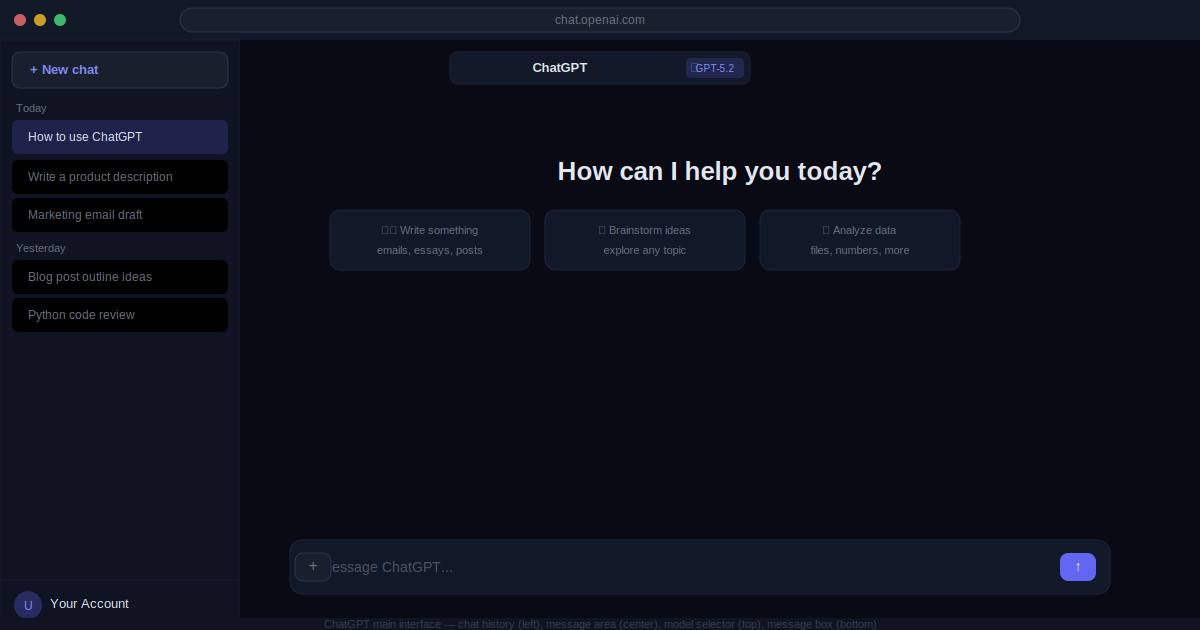
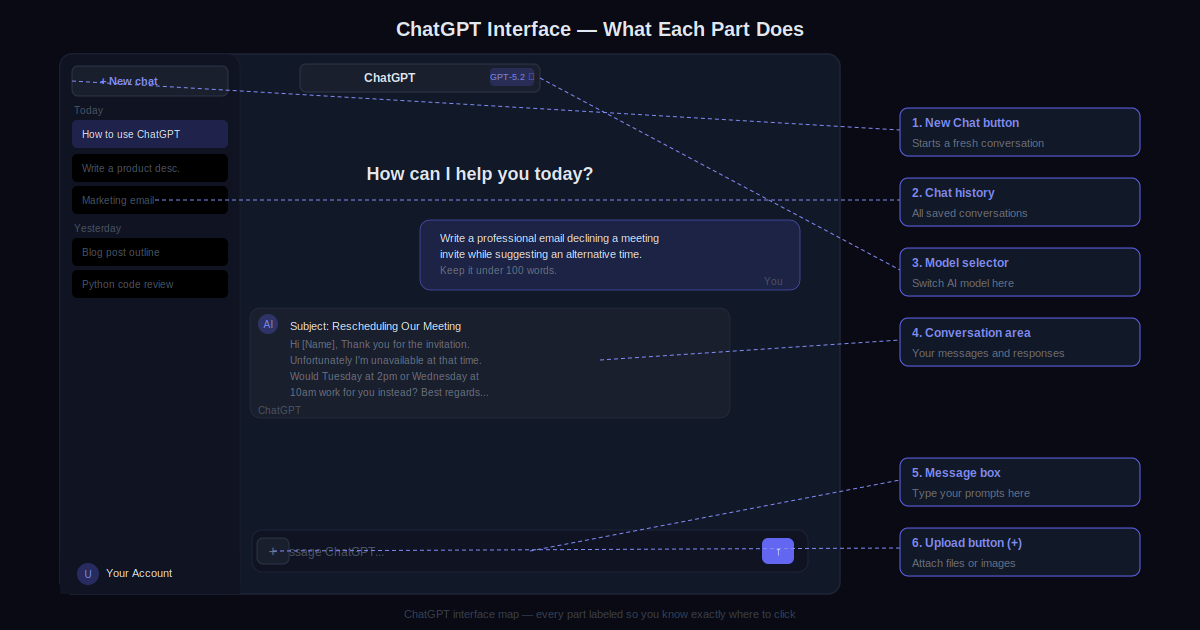
Left side: your chat history. Every conversation gets saved automatically. You can rename any of them by clicking the three dots next to it. Useful once you have a dozen conversations and need to find one from last week. At the top of that sidebar is a “New chat” button. Click it whenever you’re starting something completely different.
Center: the main chat area. This is where messages appear. At the very bottom is the text box where you type. Next to it, a small “+” button for uploading files or images when you’re on a plan that supports it.
Top center: the model selector. Shows which AI model is currently running. On the free plan it defaults to GPT-5.2 Instant. Leave it there for now. You don’t need to change it.
Step 3: Write Your First Prompt (and Why Most People Get This Wrong)
This is where almost everyone stumbles. The instinct is to type something short. “Help me write an email.” “What is SEO.” “Give me recipe ideas.” ChatGPT answers, but the answer is generic. Because the question was generic.
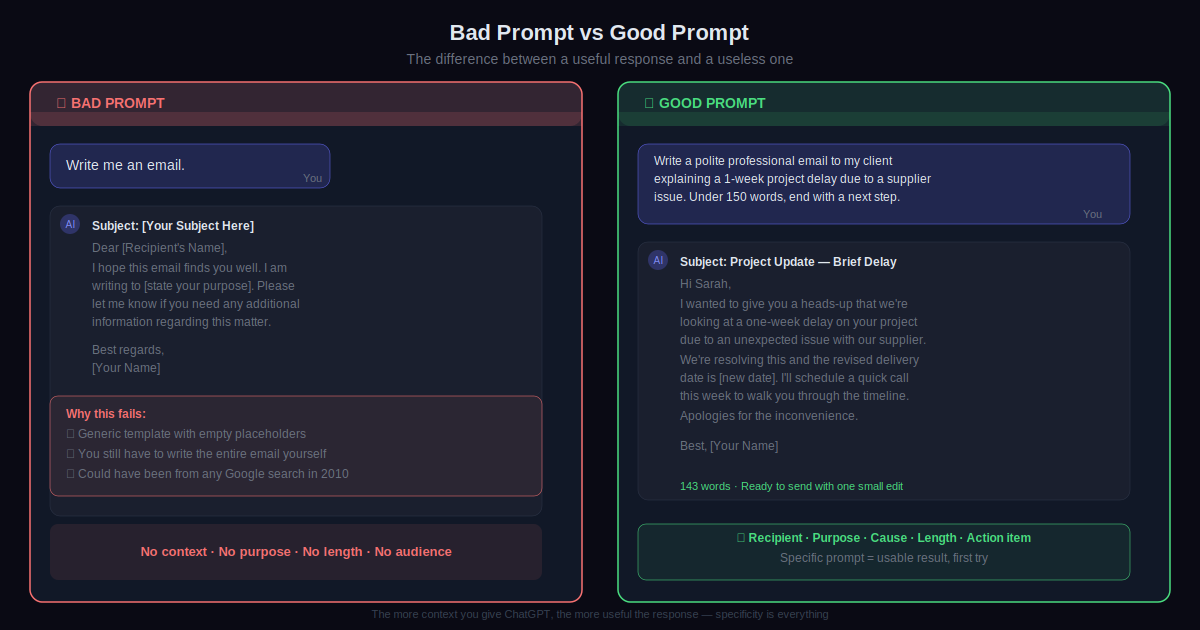
The difference between a prompt that works and one that doesn’t isn’t technical skill. It’s just specificity. Look at these two side by side:
Bad: Write me an email.
Good: Write a short, professional email to my client explaining their project will be delayed by one week because of a supplier issue. Keep it under 150 words and end with a suggested next step.
The second one tells ChatGPT who it’s for, what happened, how long it should be, and what to include at the end. The result will be something you can actually send with minor edits. The first result needs you to basically rewrite the whole thing anyway. So you did double the work.
Try this right now. Think of one real task you’ve been putting off. Not a test prompt. A real thing. Write it out with as much context as you can, send it, and see what comes back.
Step 4: Learn the 4-Part Prompt Formula
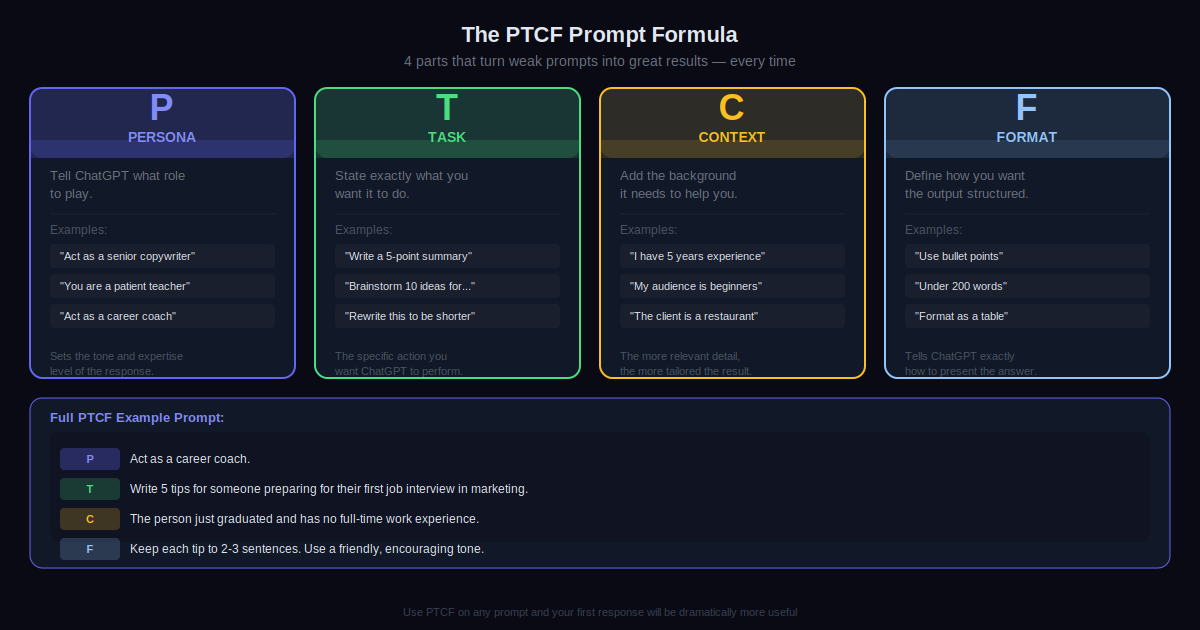
There’s a simple structure called PTCF. Once you know it, writing good prompts becomes automatic. Here’s what it stands for:
- Persona. Tell it what role to take. “Act as a marketing expert.” “You are a patient teacher.” “Respond like a senior accountant.” This sets the knowledge level and tone.
- Task. Say exactly what you want done. “Write a summary.” “Create a list of 10 ideas.” “Review this and flag the weaknesses.” One clear action.
- Context. Give it the background. Who is this for? What have you already tried? What’s the situation? The more relevant detail you include, the less generic the output.
- Format. Describe how you want the output. “Use bullet points.” “Keep it under 200 words.” “Write it as a table.” “No jargon.”
You don’t need all four every time. But the more of them you include, the better your first response will be. Here’s a full example:
Act as a career coach. Write 5 tips for someone preparing for their first marketing job interview. They just graduated and have no full-time experience yet. Keep each tip to 2-3 sentences, friendly tone.
That prompt covers all four parts. The answer you get back will be actually useful, not a generic list that could apply to any job in any field.
Step 5: Don’t Accept the First Response
This is where beginners stop and power users start. The first response is a draft. It’s not finished. Reading it, thinking “meh,” and closing the tab is the single biggest waste of what ChatGPT can do.
Stay in the same conversation and give feedback. Some examples that work:
Too long. Cut it down to under 100 words.The tone is too formal. Rewrite it in a more casual voice.Point three isn't relevant to my situation. Replace it with something about X.Give me three alternative versions of just the headline.This is close but not quite right. Let me explain what I actually need...
ChatGPT remembers everything in the current conversation. You don’t repeat context. You just tell it what to change and it applies that to what already exists. Most genuinely useful outputs come from the second or third pass, not the first.
Step 6: Set Up Custom Instructions
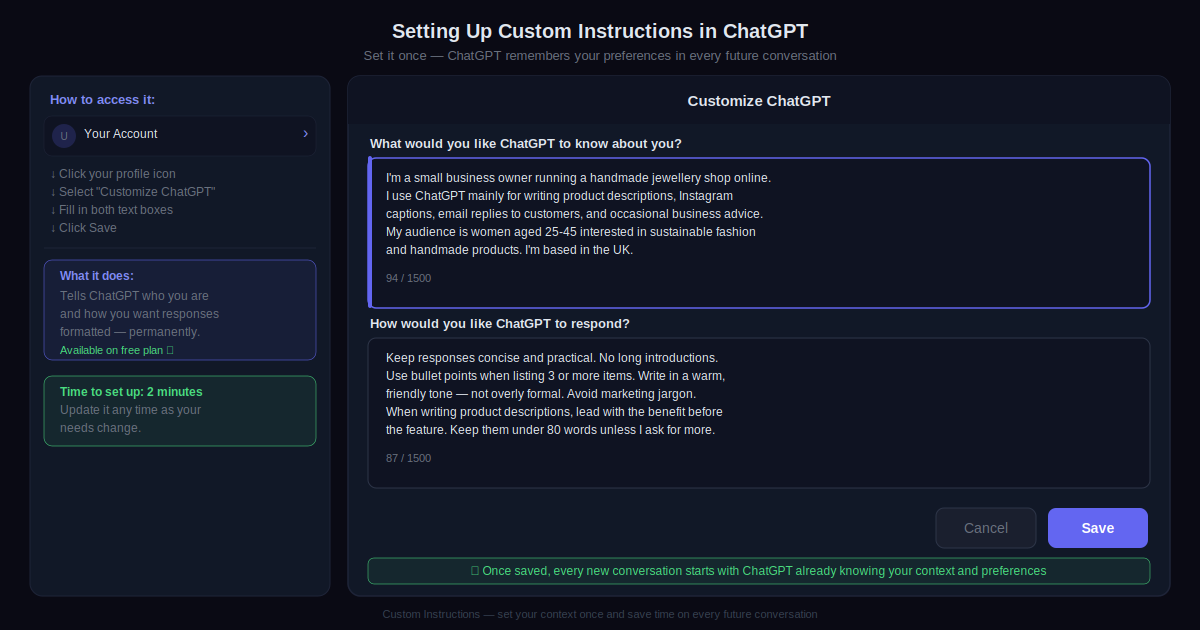
Most beginners don’t find this for weeks. Custom Instructions let you tell ChatGPT who you are one time, and it applies that to every future conversation automatically. No more typing “I’m a freelance designer” or “keep things concise” at the start of every chat.
How to get there: click your profile picture in the bottom left corner. Select “Customize ChatGPT” from the menu. Two text boxes appear.
First box: “What would you like ChatGPT to know about you?” Write who you are and what you use it for. Something like: I run a small handmade jewellery business. I use ChatGPT mainly for product descriptions, Instagram captions, and customer emails. My customers are women aged 25-45 interested in sustainable products.
Second box: “How would you like ChatGPT to respond?” Define your preferred style: Keep responses short and practical. No long preambles. Use bullet points for any list of 3 or more items. Plain language, no marketing jargon.
Click Save. Done. Every new conversation you start from this point uses that context by default. Two minutes now, saves you time on every prompt for as long as you use the tool.
Step 7: Know Where It Falls Short
Nobody tells beginners this and it causes real problems. ChatGPT is not always right. And it sounds confident whether it’s right or wrong. That combination is dangerous if you’re not expecting it.
Where it’s genuinely excellent: writing and editing any kind of text, explaining complicated topics in simple language, brainstorming, summarizing long documents, drafting plans and outlines, writing and reviewing code, and answering questions about well-established topics.
Where you need to be careful: recent news and events past its training cutoff, specific statistics and numbers, legal or medical advice for your specific situation, and anything where acting on wrong information causes real harm.
A working rule: treat every specific factual claim as a starting point, not a final answer. Verify anything important before you act on it. Use it like a smart first draft, not an encyclopedia. That mental model will serve you well from day one.
Pro Tips
- Work in one conversation per project, not a new chat every time. ChatGPT holds the full context of the current conversation in memory. When you start a new chat for each related question, you lose that context and have to repeat yourself. One long conversation on a single topic gives you much more consistent, relevant answers across every message.
- Save the prompts that work. When a prompt gets you exactly what you needed, copy it somewhere. A notes app, a Google Doc, anything. A collection of 10 to 15 prompts that reliably work for your specific tasks is worth more than any tips list. It becomes your personal toolkit. You’ll use it every week.
- Ask it to explain itself. After a response, ask “why did you structure it that way?” or “what assumptions did you make?” Especially useful when you’re using ChatGPT to learn something. The explanation behind the answer is often more valuable than the answer itself.
- Paste your own writing in and ask for criticism. Don’t just use it to generate. Paste your draft and ask “what are the three weakest parts of this and how would you fix them?” It keeps your voice in the output while actually improving what’s there. Much better than generating from scratch.
- Be blunt when it misses the mark. Say “that’s not what I meant” and explain again. Say “too long, try again.” ChatGPT doesn’t get offended. It doesn’t get tired. Giving direct feedback gets better results faster than trying to craft a perfect rephrasing of your original prompt.
- Download the app and try voice mode. The iOS and Android apps both have a voice mode. You speak your prompt instead of typing it. If you’re a faster talker than typer, this changes how you use the tool completely. Also works hands-free while cooking, commuting, or doing something else at the same time.
Common Mistakes to Avoid
- Treating it like Google. Searching “best laptop under $800” or “weather in Paris today” in ChatGPT is the wrong tool for the job. It doesn’t browse the web by default on free accounts and its training data has a cutoff. Google handles real-time facts. ChatGPT handles thinking, writing, summarizing, and creating. Different jobs, different tools.
- Closing the tab after the first response. I watch people do this constantly. They read the first answer, decide it’s not impressive, and walk away. That first response is a first draft. Refine it. Push back. The difference between the first output and what you can get after two or three follow-ups is night and day.
- Vague prompts, then disappointment at vague answers. “Help me grow my business” gets you a generic 5-point list that applies to every business that has ever existed. “I run a 4-person landscaping company in Austin and I need help writing a one-page flyer to attract new residential clients in the spring” gets you something you can actually print. Specificity is the skill.
- Trusting numbers without checking. ChatGPT will state a statistic with full confidence and be completely wrong. Not because it’s lying. Because it predicts plausible-sounding text, and plausible-sounding statistics are exactly what it produces when it doesn’t actually know the real number. Verify any specific data before you use it for anything that matters.
- Skipping Custom Instructions and paying for it every single day. Every conversation you start without them, you’re re-explaining who you are and what you need from scratch. Two minutes to set up once. That’s the trade. Do it before your second conversation, not your fiftieth.
Next Steps
Reading this and actually using ChatGPT are two very different things. The guide gets you set up. Using it on real tasks is what makes it click.
This week, pick three actual tasks you normally handle yourself. An email you’ve been avoiding. An article you need to summarize before a meeting. A plan for something you’re working on. Run each one through ChatGPT using everything you just read. See what comes back. Refine the outputs. Pay attention to which kinds of prompts work best for you specifically.
After that, go set up Custom Instructions if you haven’t already. Then explore one new feature you haven’t touched yet. File uploads if you’re on Plus. Image generation. Voice mode on mobile. Each one covers a different type of task and opens up a different category of usefulness you probably haven’t considered yet.
The people who get the most out of this tool aren’t the most technical people in the room. They’re the ones who use it every day for real work, notice what doesn’t work, and slowly build habits around what does. That starts with the first real prompt you send. Not a test. A real task. Go do it.