
My brother-in-law called me on a Sunday night. He’d just spent twenty minutes on Claude and gotten nothing useful. “It keeps giving me generic answers,” he said. I asked what he typed. “Write me a summary of this document.” Then he’d pasted a 15-page PDF. The problem wasn’t Claude. It was that he gave it zero context about what the summary was actually for, who would read it, or how long it needed to be. Claude did exactly what he asked. Just not what he needed. That gap right there — between what you type and what you actually mean — is the whole learning curve of how to use Claude. And it’s smaller than you think.
This guide gets you past it. Quickly. No theory, no marketing, just what actually works from day one based on real use.
What You’ll Learn
- How to create a free account and what the interface actually looks like
- Why your first prompts probably won’t work well — and the simple fix
- The four task types where how to use Claude becomes immediately obvious
- How iteration works and why it matters more than your first prompt
- What Claude genuinely cannot do well, so you stop trying to use it for the wrong things
- How Projects save you from re-explaining your context every single time
What You Need
An email address. A browser. That’s it technically. But the thing that actually determines whether this session goes well is having one real task ready. Not a test question. Something from your actual week that you need help with. That’s it.
- Email or Google account to sign up
- Any modern browser — doesn’t matter which
- One real task you want to try. Seriously, pick one before reading further.
Step 1: Create Your Account
Go to claude.ai. Click “Start for free.” Sign in with Google if you want it done in 30 seconds, or use email. You’ll land on a clean screen with a text box at the bottom. That’s it. No setup, nothing to configure. Just start talking.
Don’t pay for anything yet. The free plan has real daily limits but they’re enough to figure out whether this is worth it for you. Upgrading before you know what you’ll use it for is just money you don’t need to spend today.
Step 2: What You’re Looking At
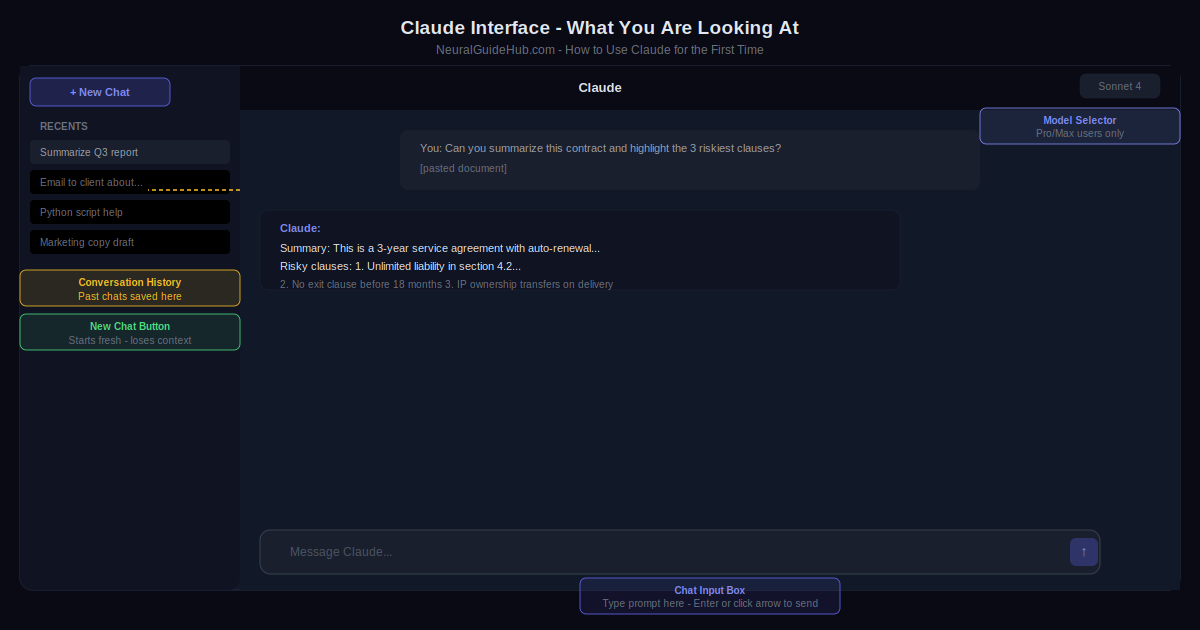
The interface is deliberately simple. Four things to know:
The text box at the bottom is where everything happens. Type, hit Enter. That’s the whole interaction model.
The left sidebar shows your previous conversations. You can go back to any of them. Nothing disappears unless you delete it.
New Chat starts a blank conversation. Here’s the important part: Claude has no memory across conversations. Start a new chat and it has no idea what you talked about before. This catches people off guard constantly. If you’re working on something over multiple sessions, stay in the same thread.
The model selector only shows up if you’re on a paid plan. On free you get the standard model. It’s capable enough for almost everything in this guide.
Step 3: Your First Real Prompt
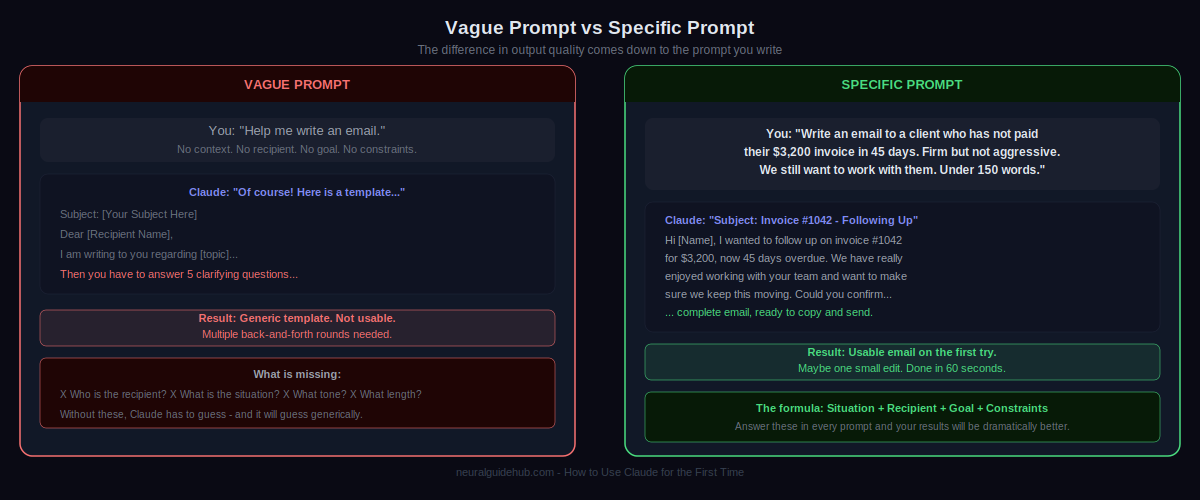
Most people write something vague. Claude responds vaguely. They assume the tool is bad. That’s almost never the actual problem.
Here’s a real example. My brother-in-law typed:
"Write me a summary of this document."
What he should have typed:
"Summarize this 15-page financial report for my CEO. She needs the three most important takeaways and any risks she should know about before Tuesday's board meeting. Keep it under 200 words and avoid jargon."
Same task. Completely different output. The second version tells Claude who’s reading it, what they need to get out of it, the deadline pressure, the length, and the tone. Claude takes all of that and works with it. Give it nothing to work with and it defaults to something generic.
Three questions to answer before sending any prompt: What exactly do you need? Who is it for or what’s the context? What should the output actually look like? Answer those and you’re already ahead of 80% of first-time users.
Step 4: Use It for Something Real
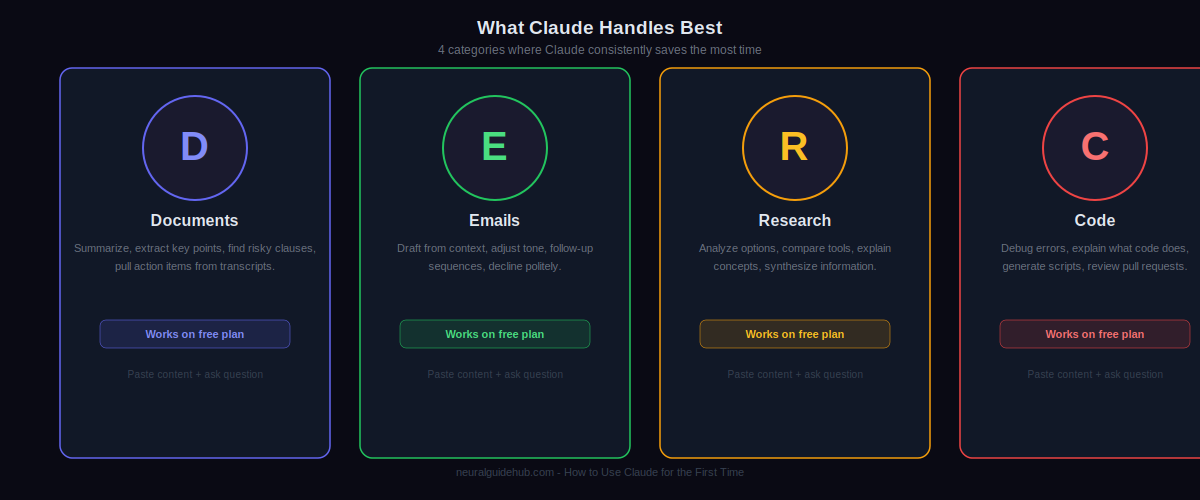
Four areas where Claude earns its place fast. Pick whichever matches the task you have waiting.
Long Documents
Paste the document. Ask your specific question after. “What are the three clauses most likely to cause problems for us?” works better than “summarize this.” Claude handles long text well. Free plan goes up to roughly 30,000 words. Pro and Max handle much more.
Emails You’ve Been Avoiding
Tell it the situation, the person, the tone you need, any constraints on length. It drafts. You review and tweak. The whole thing takes three minutes. I’ve watched people clear a week’s worth of difficult emails in an afternoon doing this.
Analysis and Research
Paste whatever you’re analyzing and ask what you need to know. Comparing two vendor proposals? Paste both and ask for a direct comparison on specific criteria. It doesn’t browse the internet on the free plan, so give it the source material directly.
Code and Formulas
Paste the broken code with the error message. Or describe what you want the script to do. For people who aren’t developers but need a formula or a simple script — describe the result you want, ask for the code that produces it. Works surprisingly well.
Step 5: Iterate Instead of Restarting
First answer wasn’t quite right? Good. That’s normal. Don’t close the tab.
Tell it specifically what’s wrong. “Too long, cut it in half.” “This reads too formally for the person I’m sending it to.” “The third paragraph doesn’t make sense, rewrite just that part.” “I said avoid jargon and you used it three times in the second section.”
People who get genuinely good outputs from Claude are almost always the ones who iterate. Two or three rounds of specific feedback gets you somewhere a single prompt rarely does. Stay in the same conversation thread when you do this — Claude tracks everything you’ve said from the beginning of the conversation.
Step 6: Know What It Cannot Do
Four things worth knowing before you hit them:
- No real-time information. Training cutoff means it doesn’t know what happened last week. For current events or recent data, use Perplexity or a search engine.
- Math errors happen. On anything with complex calculations, verify the numbers separately. It’s not reliable enough to trust without checking.
- It can sound confident while being wrong. Especially on niche or technical topics. Anything where accuracy matters — check the source.
- Memory resets between chats. Each new conversation starts from zero. If you’re working on a project across multiple days, use one thread or set up a Project (Step 7).
Step 7: Set Up a Project for Recurring Work
If you do the same type of work repeatedly — one ongoing client, one research project, one product — Projects save you from typing the same context every time.
Click “Projects” in the left sidebar, then “New Project.” Give it a name and write a short description of the context Claude should always have. Something like: “I’m a freelance UX designer. Most of my work is for fintech clients. Outputs should be concise, professional, no buzzwords.” Every conversation inside that project inherits that context automatically. You stop explaining yourself every time.
Pro Tips
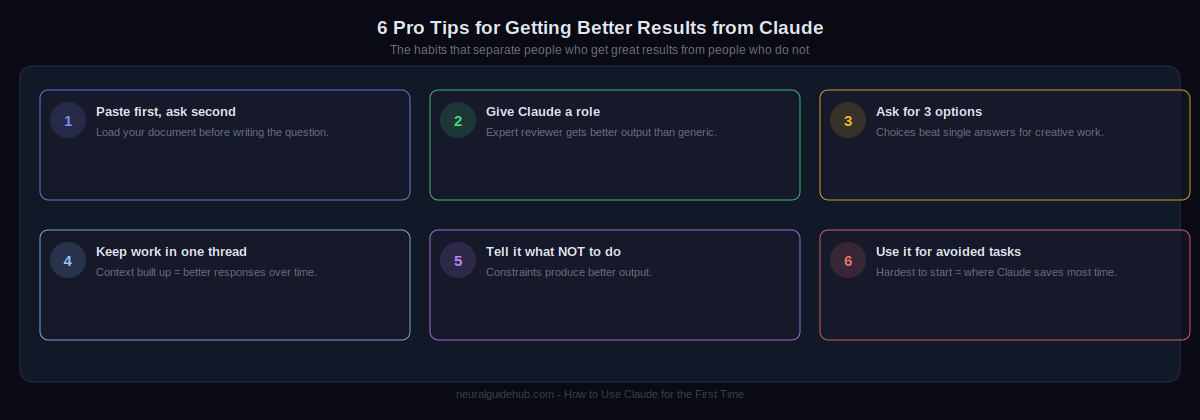
- Paste content before asking your question. If you’re analyzing a document, paste it first. Write your question at the end. Claude reads everything before responding, so this gets you a better first answer.
- Give it a role on judgment-heavy tasks. “Review this as a senior editor would” or “Look at this the way a skeptical investor would” focuses the output in ways a generic prompt doesn’t.
- Three options beat one. “Give me three ways to approach this” almost always produces something more useful than asking for a single answer. Then you pick.
- Long projects: one thread. Claude’s context inside a conversation is long. Working in one thread means it builds on everything you’ve already established. Starting fresh loses all of that.
- Constraints work. Tell it what you don’t want. No bullet points. Under 100 words. Plain language only. No opening with a compliment. These narrow the output more effectively than trying to describe the positive version of what you want.
- The tasks you’ve been dreading are the right ones to start with. The email that’s been sitting in drafts. The report you can’t structure. The explanation you’ve rewritten four times. That’s where the time savings are actually meaningful.
Common Mistakes to Avoid
- One vague prompt and giving up. Rewrite the prompt with real context before deciding the tool doesn’t work. Bad first results almost always trace back to a bad first prompt.
- Treating every output as final. Claude produces drafts. You refine them. That’s the workflow. Accepting the first response unchanged is usually leaving quality on the table.
- Starting a new chat for every message. You lose all context. Keep related work together in one thread, or use Projects for ongoing contexts.
- Trusting it on facts without checking. Particularly on anything technical, statistical, or niche. It can be wrong. Verify before you publish or send.
- Testing instead of working. “What is the capital of France” is not a useful first prompt. The people who get the most out of Claude from day one are the ones who put a real work task in front of it immediately.
Before you close this tab: pick one task. The specific one you had in mind when you started reading. Open Claude, write a prompt with real context — situation, audience, what the output should look like — and send it.
That first real result is the thing that makes it click. Not reading about it. Doing it once with something that actually matters.
After that, the next things worth learning are how Projects work for ongoing contexts, how to attach files directly instead of pasting, and how Claude compares to ChatGPT and Perplexity for different types of work. Those guides are all on NeuralGuideHub when you’re ready.