There is a version of using AI that is genuinely useful and a version that is just a slightly fancier clipboard. Most people are stuck in the second one. You find something in your browser, copy it, switch to ChatGPT or Claude, paste it, explain the context, ask your question. Every time. For every task. It is tedious in a way that sneaks up on you until one day you realize you’ve spent twenty minutes shuttling text between tabs for something that should have taken two.
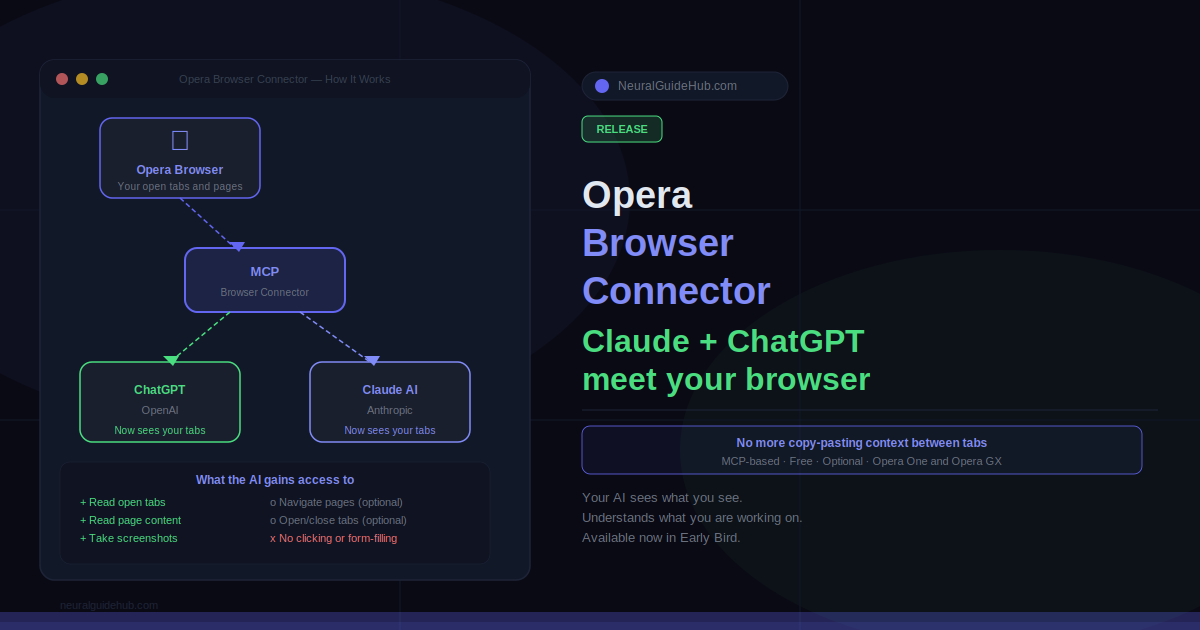
Opera just shipped a free fix for that. Opera Browser Connector, now available in Early Bird for Opera One and Opera GX, connects Claude or ChatGPT directly to your live browser session via Model Context Protocol (MCP). The AI can read your open tabs, take screenshots, navigate to pages, and understand what you are actually working on — without you manually feeding it any of that context.
What Opera Browser Connector Actually Does
The premise is simple. External AI tools hit a wall because they exist outside your browser. They do not know which tabs you have open, what page you are reading, or what you are trying to accomplish in your current session. Browser Connector closes that gap.
Once connected, Claude or ChatGPT can read the content of your open tabs, take screenshots when they need to understand images or charts, and navigate to new pages. You can ask the AI to explain something on the page you are currently reading without copying a single word. It already knows what page you are on.
The practical difference shows up quickly. Reading a dense research paper and want the key argument summarized? Ask. Comparing specs across five product tabs before a purchase? The AI can read all of them and compare without you pasting a single link. It can open additional tabs to find more options and close them afterward to keep your workspace clean.
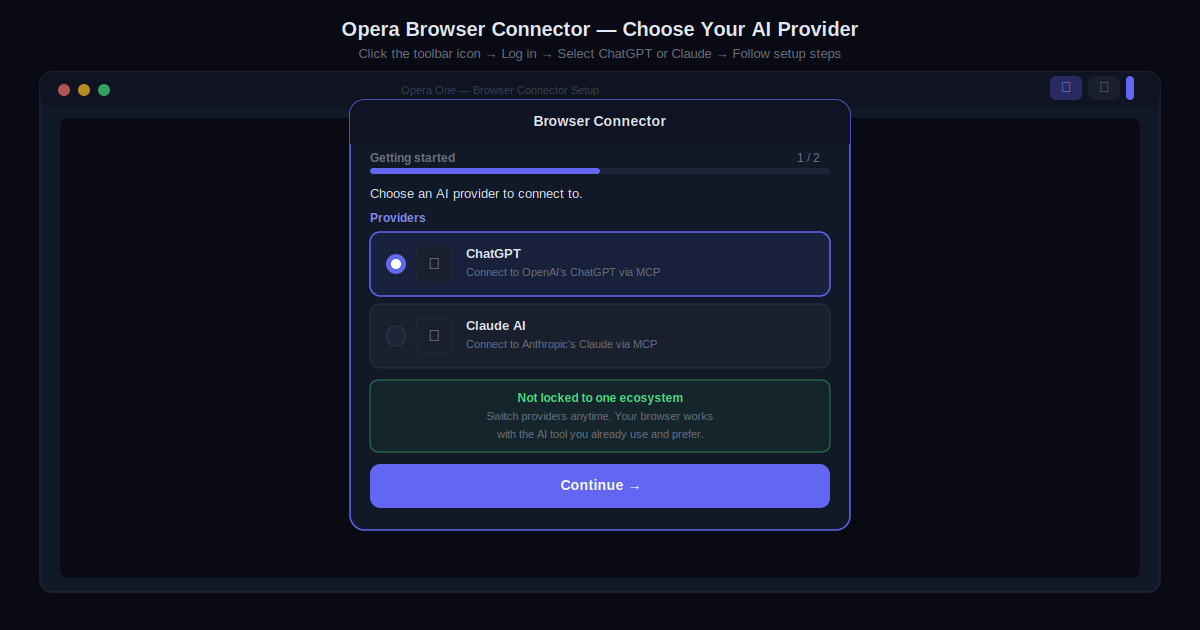
The underlying protocol is MCP, which means this is not a proprietary Opera integration. It is a standardized connection that works with the AI tools you already use. The point Opera is making here is deliberate: you are not being locked into one company’s ecosystem. You pick Claude or ChatGPT based on preference, and the browser works with either.
How to Enable the Opera Browser Connector
The feature is completely optional and free. You do not have to enable it, and nothing changes in your browser until you do.
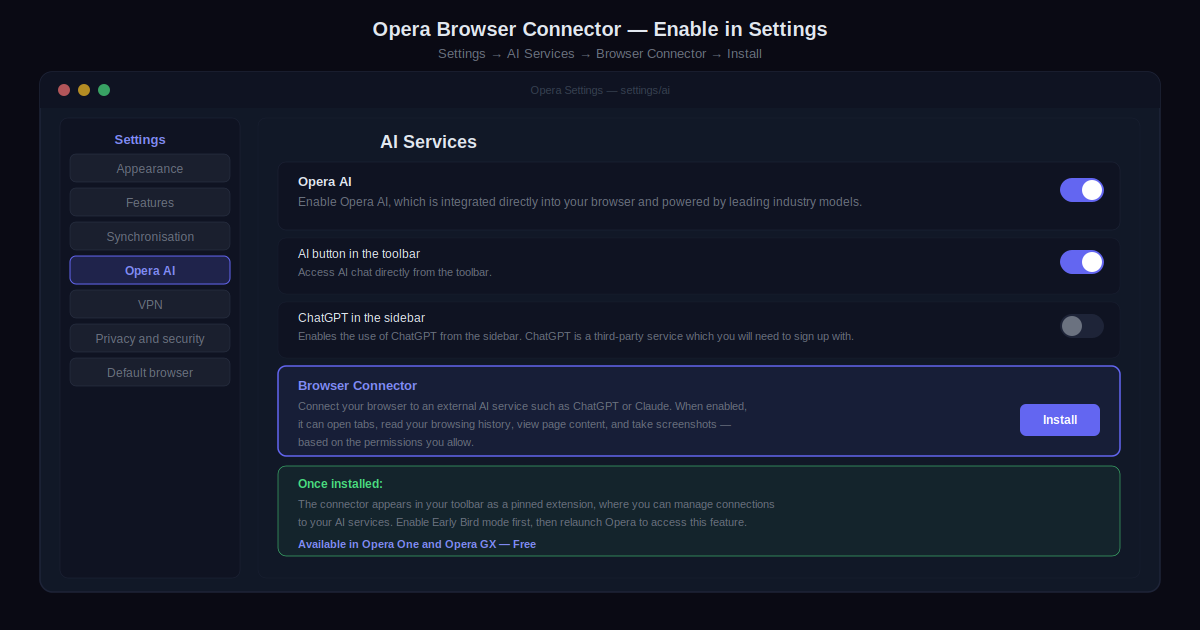
The first step is activating Early Bird mode in Opera’s browser settings, which is Opera’s testing environment for new features. After enabling it and relaunching, follow this path to install:
Opera browser settings → search for “AI Services” → find Browser Connector → click Install.
Once installed, the Browser Connector appears as a pinned extension in your toolbar at the top-right of the screen. That icon is your control panel for everything related to the connection.
Connecting Claude or ChatGPT to Opera
After installation, click the Browser Connector icon in your toolbar. You will be prompted to log in with your Opera account or create one. From there, choose your AI provider — ChatGPT or Claude — and follow the setup steps for whichever you pick.
The setup is straightforward. Opera walks you through connecting the AI tool on its own platform side, and once both ends are configured, the connection is live. Your AI can now see your browser session.
Permissions and Privacy Controls
This is the part worth reading carefully, because the permissions are more granular than they might appear at first.
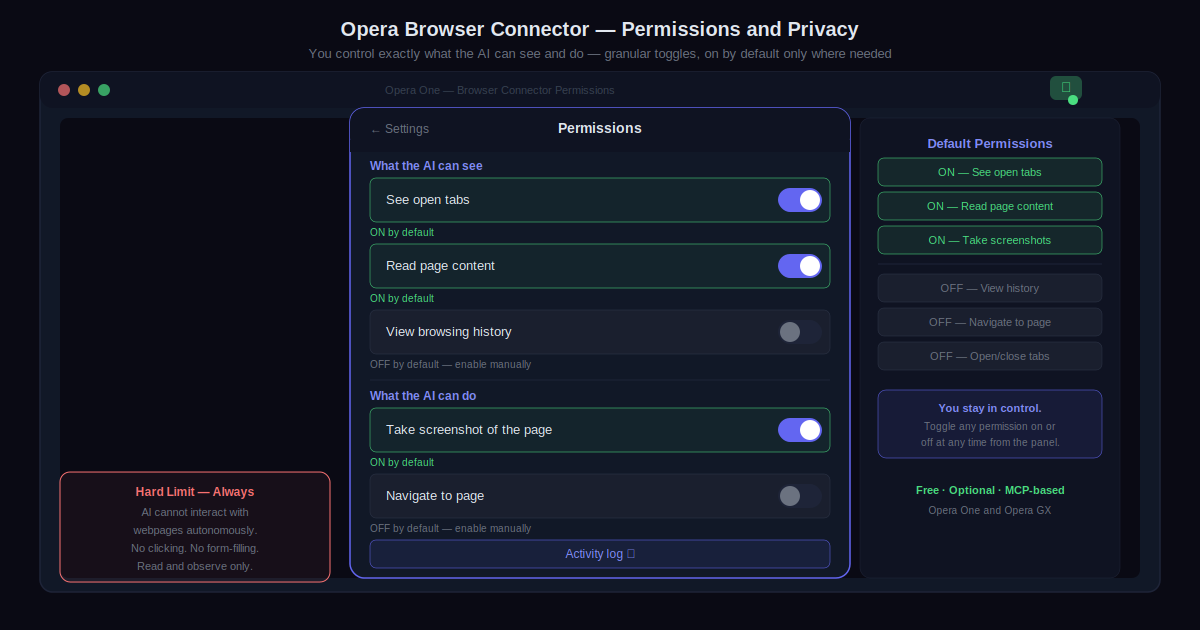
By default, the connected AI can read your open tabs and read tab content. It can also take screenshots of tabs. These three capabilities are on by default because they are the core of what makes the feature useful.
Other capabilities are off by default and require you to enable them manually: reading your browsing history, navigating to a page, opening tabs, and closing tabs. You control all of this from the extension settings panel.
One hard limit worth knowing: the AI cannot interact autonomously with webpages. No clicking links, no filling out forms, no operating independently on your behalf. The browser access is read and observe, not act. That distinction matters for anyone concerned about what a connected AI can actually do without your explicit involvement.
Who This Is For and Where It Falls Short
Browser Connector is most useful for people who already use Claude or ChatGPT regularly and keep a lot of context in their browser tabs. Researchers, writers, developers doing technical reading, anyone who compares products or documentation across multiple pages — all of those workflows get noticeably faster when the AI can read the page directly.
It is less useful if you primarily use AI for tasks that are not browser-based: code generation, creative writing, or structured document work. The feature does not add much there.
The Early Bird caveat is real. This is a testing environment, not a final release. Rough edges should be expected, and Opera will iterate based on feedback before a full rollout.
Opera Browser Connector is available now in Opera One and Opera GX. Download either browser or enable Early Bird mode in your existing installation to get started at opera.com.