Okay, real talk. I used Notion for almost a year and basically treated it like Notepad with nicer fonts. Pages everywhere. Nothing connected. Couldn’t find anything older than two weeks. The whole point of the app was completely lost on me.
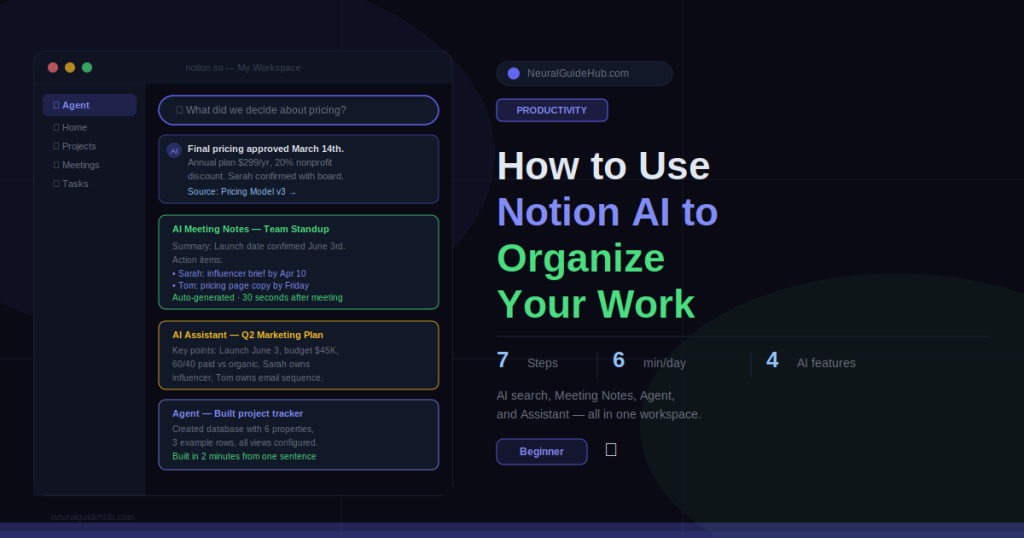
Then I watched someone use Notion AI properly for about ten minutes and felt genuinely stupid. She asked it where a decision had been documented three weeks ago. It answered in four seconds. With a link. Then she asked it to pull all the action items from a messy meeting page. Done before I finished reading the first paragraph of that page. Then, just to really drive it home, she told the Agent to build a project tracker from scratch. Described what she needed in one sentence. It built the whole database.
I went home and spent that evening actually learning how to use Notion AI to organize work. This guide is what I figured out. No fluff, no “imagine a world where your notes are organized” preamble. Just what to actually do.
What You’ll Learn
- Why Notion AI fails for most people and the one fix that changes everything about it
- How to use Notion AI to organize work every day without building a complicated system
- What the AI Agent actually does and when to use it instead of the regular AI assistant
- How to set up AI Meeting Notes so meetings stop needing manual write-ups
- A simple daily routine that takes ten minutes and keeps everything organized
- The mistakes that make smart people conclude Notion AI “doesn’t work”
What You Need
- A Notion account. Free plan has limited AI trial usage. Full access is on Plus ($12/month) or Business ($20/month). AI Meeting Notes needs Business.
- Notion desktop app or browser. Both fine. Desktop is faster if you’re in it all day.
- Some content already in Notion. Even rough notes work. The AI needs something to work with.
- Notion mobile app if you want AI Meeting Notes on your phone, which honestly is where it’s most useful.
Step 1: Fix Your Workspace Before Touching AI
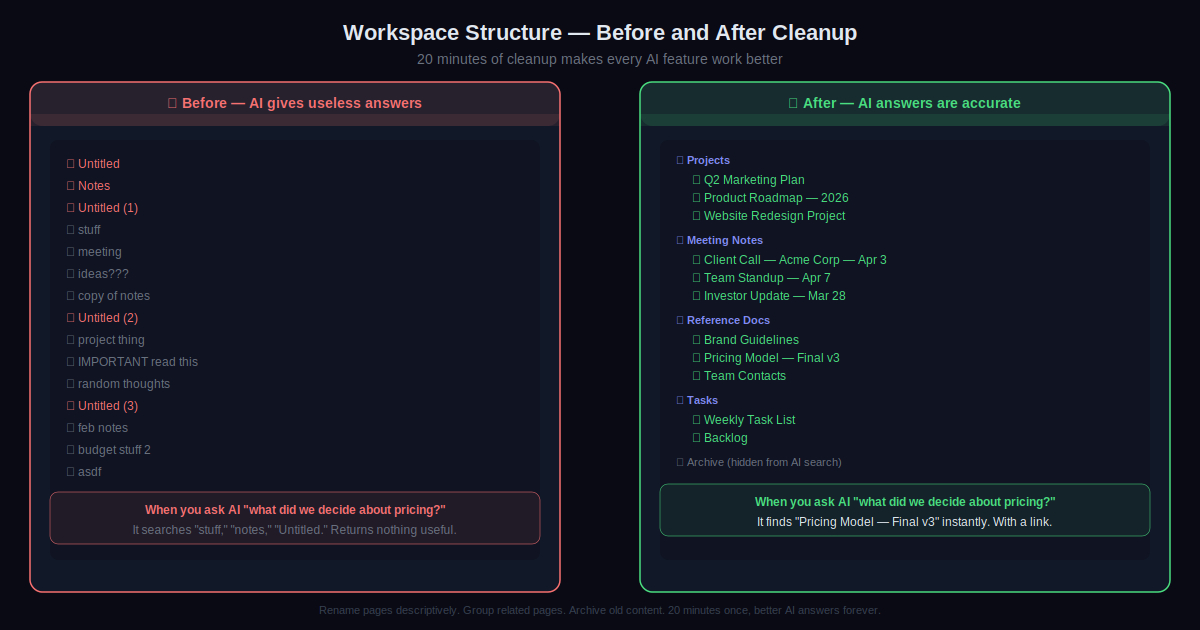
This is not the exciting part. But skip it and nothing else in this guide will work properly. Notion AI searches your workspace to answer questions. If your workspace is chaos, you’ll get chaotic answers and you’ll think the tool is broken. It’s not. Your pages are just untitled and unstructured.
Twenty minutes. That’s all this takes. Three things:
Rename vague pages. “Untitled,” “Notes,” “Stuff” — find them, rename them with something specific. “Client Call — Acme Corp — Jan 14” is a page AI can find. “Notes” is not.
Group related pages. All your project pages inside one parent. All meeting notes inside another. Doesn’t need to be perfect. Just broadly organized.
Archive old junk. Notion has an Archive feature now. Mark anything you haven’t opened in months as archived. Archived pages don’t show up in AI search results by default. Cleaner workspace, better AI answers. Direct relationship.
That’s the whole step. Not glamorous. But every person I know who says Notion AI “doesn’t really work” has a workspace that looks like a digital junk drawer.
Step 2: Learn the Two AI Modes and When to Use Each
Most people don’t realize Notion AI has two completely different modes. Mixing them up is probably the second most common reason it feels disappointing.
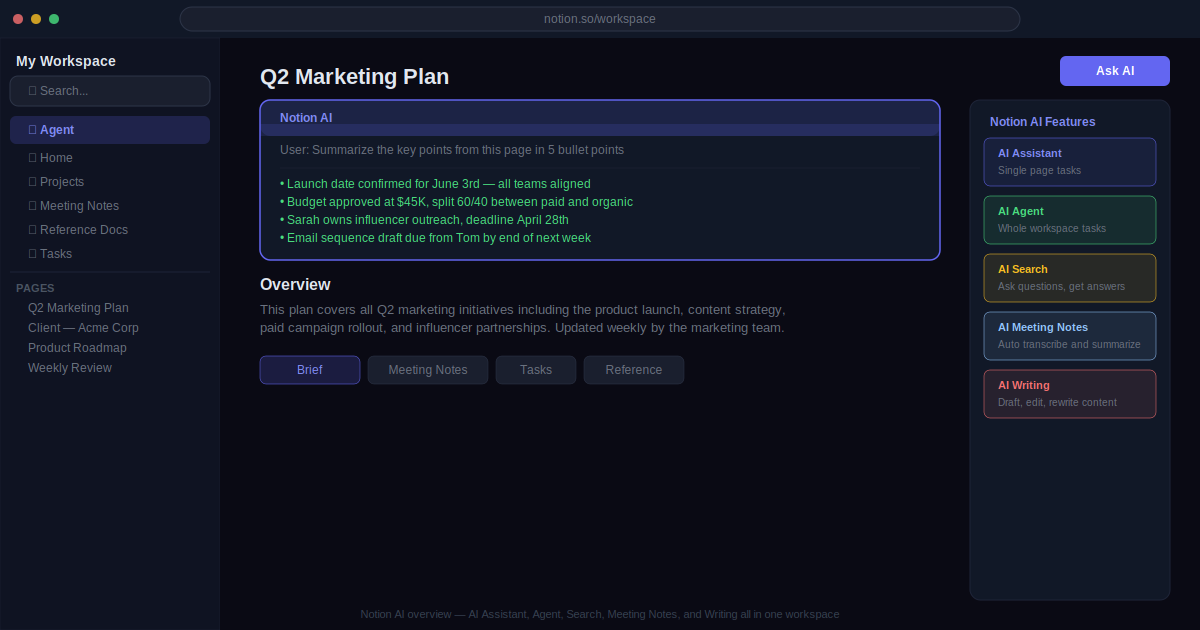
The AI Assistant works on a single page. You open a page, press Space on an empty line, and it appears. It reads what’s on that page and helps you with it. Summarize this. Extract action items. Rewrite this paragraph. Fix the grammar. All single-page stuff.
The AI Agent works across your whole workspace. It can read multiple pages, create databases, move content around, and do multi-step tasks on its own while you do something else. It’s the one in the left sidebar with its own chat interface.
Quick rule: if the task involves one page, use the Assistant. If it involves your whole workspace or building something new, use the Agent. That distinction alone fixes about half the frustration people have with this tool.
Step 3: Use the AI Assistant for Daily Tasks
Open any page. Press Space on an empty line. The AI assistant shows up.
Here are the things I do with it every single day, not occasionally, every day:
Summarize long pages. I have a research page that’s grown to somewhere around 3,000 words over the past few months. Every Monday I open it, press Space, type “summarize the key points in 5 bullet points,” and have a useful briefing in about ten seconds. I haven’t read the whole thing since February.
Pull action items from meeting notes. Paste rough notes into a page. Press Space. Type “find all action items from these notes and list them with whoever was mentioned as responsible.” It catches things I miss when I do this manually. Every time.
Rewrite drafts. Write something rough. Highlight it. Right-click. Choose Ask AI. Type “make this clearer without changing the meaning.” It edits in place. You can accept or ask it to try differently. Faster than re-reading your own writing five times trying to figure out what’s wrong with it.
You can also highlight any specific block of text, right-click, and choose “Ask AI” to work on just that section. Useful when one paragraph needs fixing, not the whole document.
Step 4: Use AI Search to Find Anything in Your Workspace
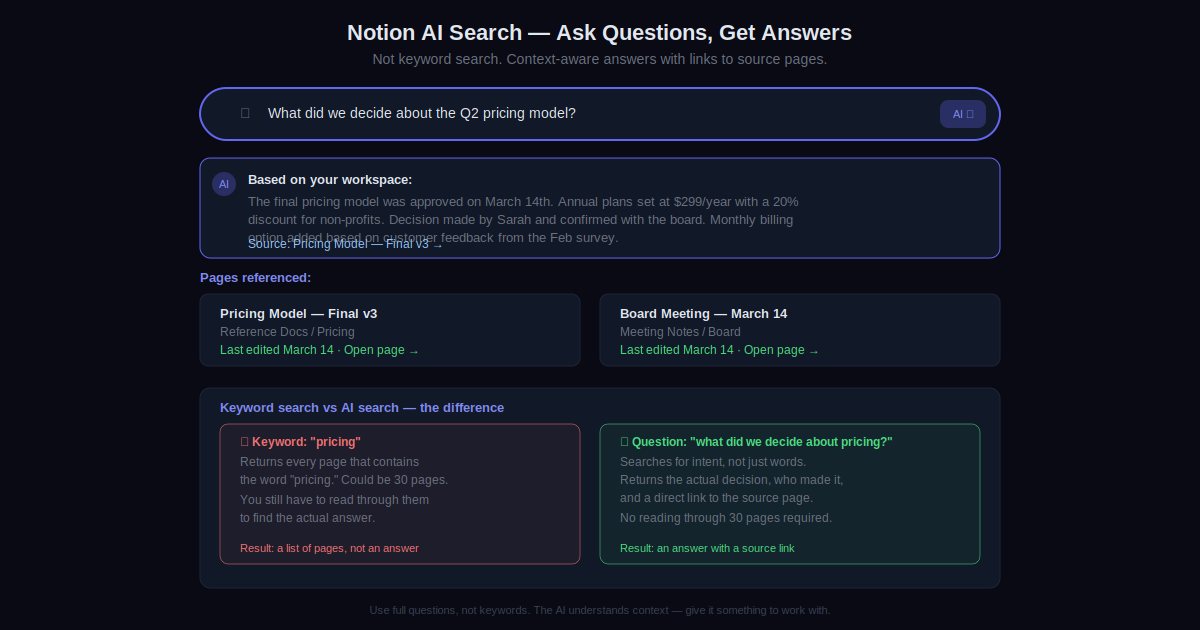
Regular Notion search finds page titles. AI search understands questions.
Click the search bar at the top of your sidebar. Make sure the AI toggle is switched on. Then ask a real question instead of typing keywords.
“What did we decide about the pricing model in March?” Not “pricing.” Not “Q1.” The actual question you’re trying to answer.
Notion searches across everything in your workspace and gives you an answer plus a link to the source page. I started using this about six months ago and genuinely cannot navigate my workspace without it now. It’s just too big to search manually at this point.
One thing worth knowing: AI search works better when pages have real content. A page titled “Q2 Budget Discussion” with two lines of notes doesn’t surface as well as one with actual substance. Fill pages out even roughly. The AI handles cleanup, not gaps.
Step 5: Build Databases with the AI Agent
Click the Agent icon in the left sidebar. New chat opens. Describe what you want built.
Example: Create a project tracker for my content team. Columns: project name, owner, status (not started, in progress, done), due date, content type (blog, video, email), notes. Add 3 example rows to show how it works.
It builds the whole thing. Every property, every option, the example rows. You don’t touch a single setting. When it finishes it shows you what it created and asks if anything needs changing. “Add a priority column with high, medium, low” — done in another thirty seconds.
This used to take me about twenty minutes to set up manually because I’d inevitably forget a column or name something badly and have to redo it. Now it takes two minutes and the first draft is usually better than what I’d have built myself.
The Agent can also reorganize existing content. If you have a pile of unstructured pages that should be a database, tell it: “Turn these pages into an organized database grouped by topic.” It analyzes the content, maybe asks one clarifying question, and builds the structure. The first time I saw this happen I genuinely just stared at the screen for a moment.
Step 6: Set Up AI Meeting Notes Once, Use It Forever
This is probably the feature with the best effort-to-value ratio in all of Notion AI. Set it up once. Never manually write a meeting summary again.
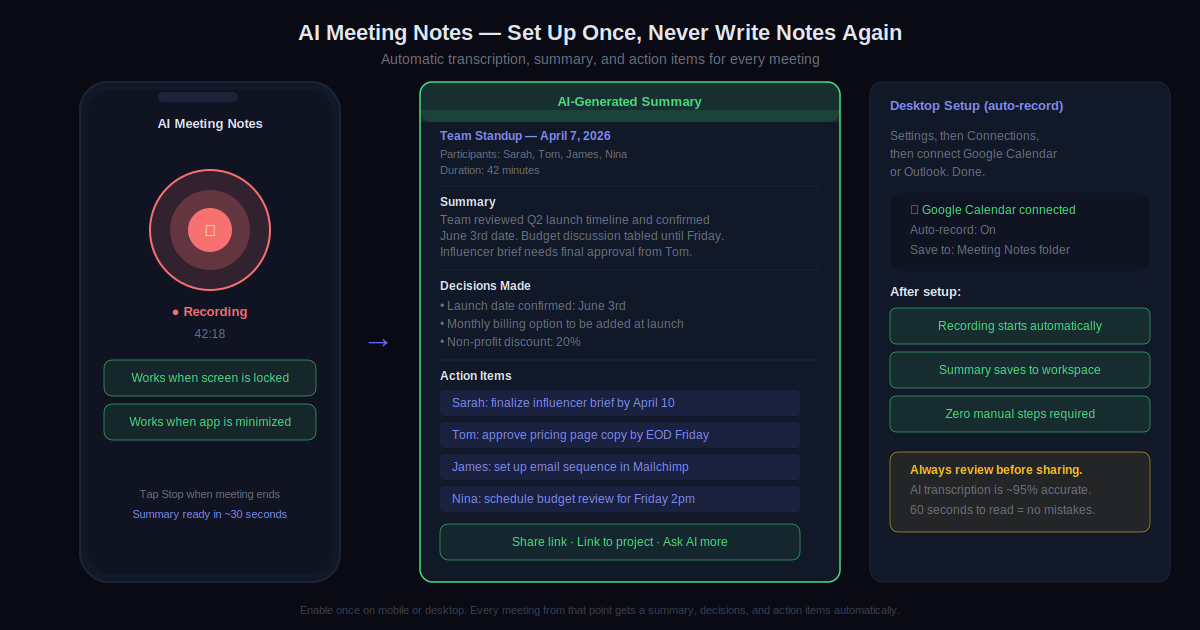
On mobile: open Notion before a meeting. Tap the AI Meeting Notes button in the bottom navigation. Tap Start Recording. It transcribes in the background even if you lock your screen or switch to another app. When the meeting ends, tap Stop. Thirty seconds later you have a summary, decisions, and action items.
On desktop: connect Notion to your Google Calendar or Outlook in Settings under Connections. Notion will automatically start recording when a calendar meeting begins. You don’t have to do anything except show up to the meeting.
The summary saves directly to your workspace. Link it to the relevant project page. Share it with attendees. Ask the AI follow-up questions about what was discussed. The whole thing takes less time to process than the meeting itself took to run.
Step 7: Build a Simple Daily Routine
A ten-minute daily routine with Notion AI is worth more than a perfectly designed system you use once a week. Simple and consistent beats complicated and occasional. Every time.
Here’s mine. I’m not suggesting you copy it exactly. I’m showing you that it doesn’t need to be complicated.
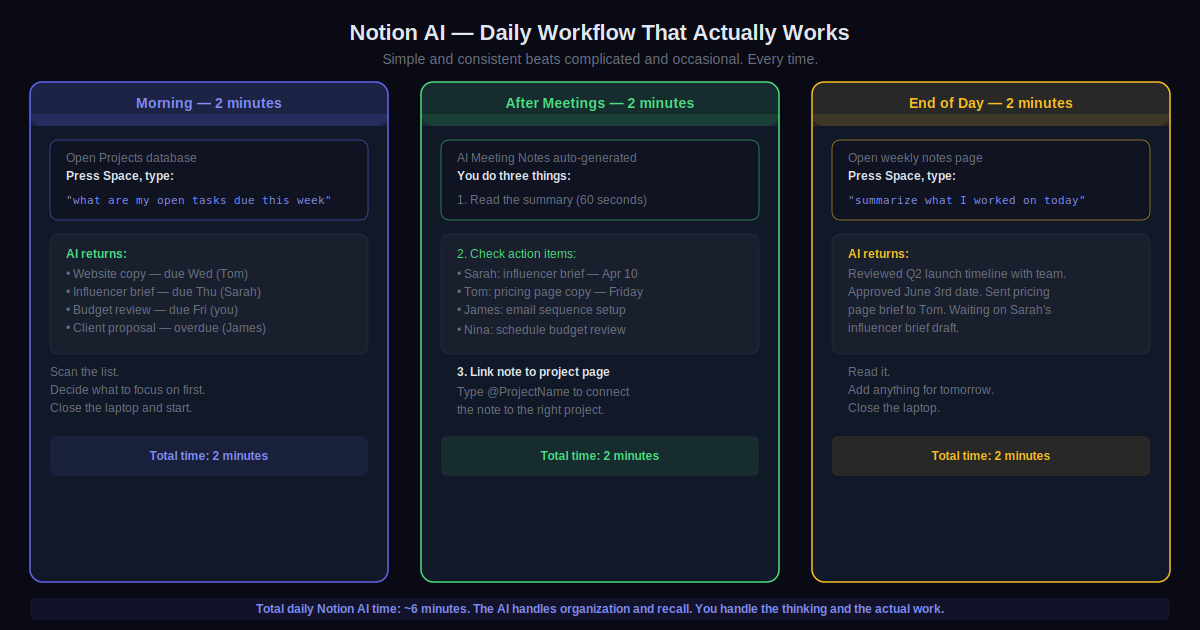
Morning, two minutes: open my Projects database, ask the AI “what are my open tasks due this week,” scan the list, decide what to focus on first.
After each meeting, two minutes: open the auto-generated AI Meeting Notes summary, check the action items, link the note to the relevant project page.
End of day, two minutes: open my weekly notes page, press Space, type “summarize what I worked on today based on this page.” Read it. Add anything for tomorrow. Close the laptop.
Six minutes total on a slow day. Ten on a busy one. The AI handles the organization and recall. I handle the thinking and the actual work. That division is the whole point.
Pro Tips
- More content on pages means better AI answers. Feels counterintuitive but it’s true. Notion AI summarizes well but can’t invent context. A page with rough, messy notes produces a more useful summary than a tidy page with three sentences. Put more in. The AI cleans it up.
- Use @mentions constantly. When you type @PageName in any note, Notion creates a live link between pages. This gives the AI relational context. “What came up in meetings with @Acme Corp this quarter” works because those pages are linked. Without the link, the AI is guessing.
- Ask the Agent to explain what it built. After any Agent task, type “walk me through the structure you created and why you organized it that way.” Helps you understand what you now have so you can actually use it. I skipped this early on and spent time confused by databases I’d asked an AI to build for me.
- Type /tabs to organize complex project pages. Tabs split a single page into clickable sections without creating subpages. One project page can have tabs for brief, meeting notes, tasks, and reference links. Everything in one place. AI searches across all tabs automatically.
- Share AI chat responses. Any Notion AI conversation can be shared as a read-only link. If the Agent built something useful or a summary was especially clear, share it. Settings, Public pages, Shared AI chats.
- Voice input works on desktop now. As of 2026. Click the microphone icon next to any AI input field. Useful if you think faster talking than typing, or if your hands are full and you just need to fire off a quick prompt.
Common Mistakes to Avoid
- Using AI on a disorganized workspace and blaming the tool. I said this in Step 1 and I’ll say it again because it’s the number one reason people give up on Notion AI. The tool is searching your pages. If the pages are a mess, the answers are a mess. Twenty minutes of cleanup first. Everything else after. There’s no shortcut here.
- Using the Agent when you need the Assistant, and vice versa. The Assistant is one page. The Agent is the whole workspace. Asking the Assistant to “reorganize all my projects” won’t work well — it can only see what’s on the current page. That’s an Agent task. Asking the Agent to “fix the last paragraph on this page” is overkill. Two minutes spent understanding which tool does what saves hours of frustration.
- Not reading AI Meeting Notes summaries before acting on them. The transcription is usually accurate. The summary is usually good. But occasionally it misses a decision made informally at the end or attaches an action item to the wrong person. Read it before you share it or act on it. Sixty seconds. Worth it every time.
- Building a complex system before testing a simple one. There’s an entire corner of the internet dedicated to complicated Notion setups. Resist it for at least 60 days. Start with a task list, a project tracker, and a meeting notes folder. Nothing else. Add complexity only when the simple version genuinely stops working for you. Most people who build elaborate systems stop using them within a month because maintaining the system becomes the job.
- Searching with keywords instead of questions. “budget” in Notion AI search returns pages with the word budget. “What was the final decision on the Q2 budget and who signed off on it” returns an actual answer. The tool understands intent. Give it a real question and it gives you a real answer. Give it a keyword and it does keyword search. You decide which one you want.
One thing. Right now.
Open Notion. Spend fifteen minutes renaming vague pages and grouping related ones together. That’s the whole task. Don’t touch AI yet. Just clean up the workspace a bit. Everything else works better after that one step.
After that, open one page with real content on it. Press Space on an empty line. Ask the AI to summarize it or pull out the action items. That first real use case is when most people get it. Not from reading about it. From doing it once with actual content they care about.
If meetings are a big part of your week, set up AI Meeting Notes before your next one. Takes five minutes on your phone. The first auto-generated summary will tell you everything you need to know about whether this fits into your workflow.
The people who use Notion AI well aren’t the ones with the fanciest setups. They’re the ones who use three or four features, every day, for the same things. Consistency builds the habit. The habit builds the system. The system does the work.