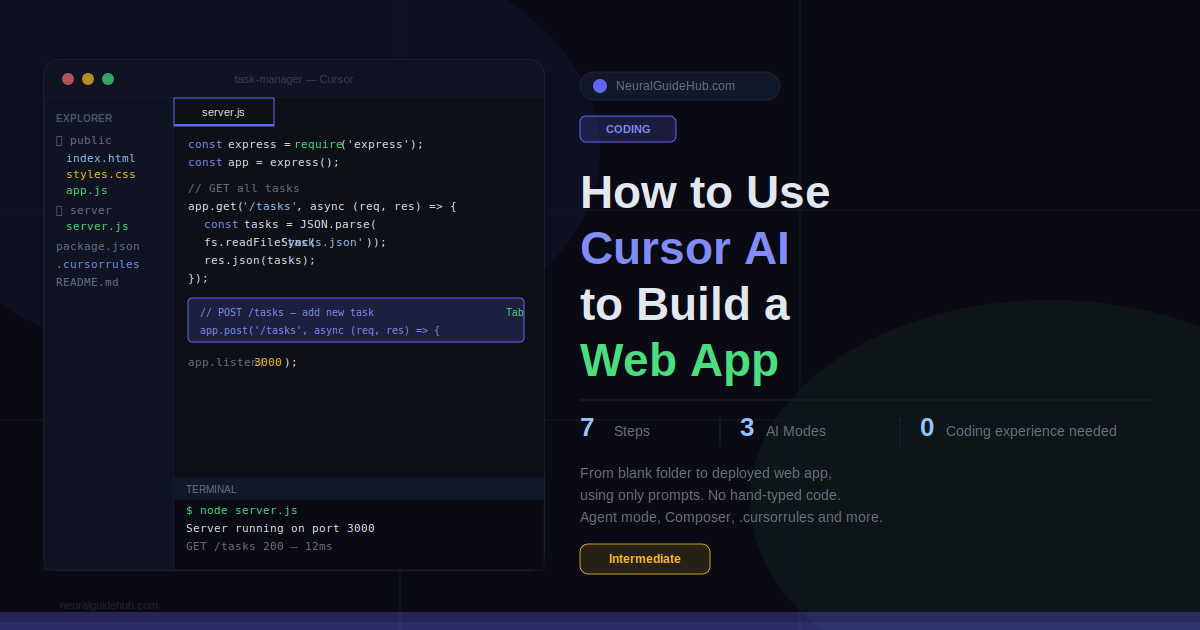
A colleague of mine built a fully working task manager app last month. He’s not a developer. He’s a project manager who had spent three years saying “I wish I could just build this myself.” He downloaded Cursor on a Tuesday evening and had something running by Thursday. Not a prototype. An actual app with a login page, a database, and a live URL he could share.
I’m not telling you that to hype things up. I’m telling you because the most common question I get now is “how do I actually start?” People install Cursor, open it up, and freeze. The interface looks like VS Code. There’s a chat panel on the side. And then… nothing. They don’t know what to type first, how to structure a project, or when to trust the AI versus when to check its work.
This guide answers all of that. We’re building a real Cursor AI web app from scratch, step by step. A simple task manager with a frontend, a backend, and a deployment at the end. Every step has a specific action. No vague “just ask the AI to help you” advice.
What You’ll Learn
- How to install Cursor and configure it properly before writing a single line of code
- How to plan your app in a way that makes the AI actually useful, not just impressive-sounding
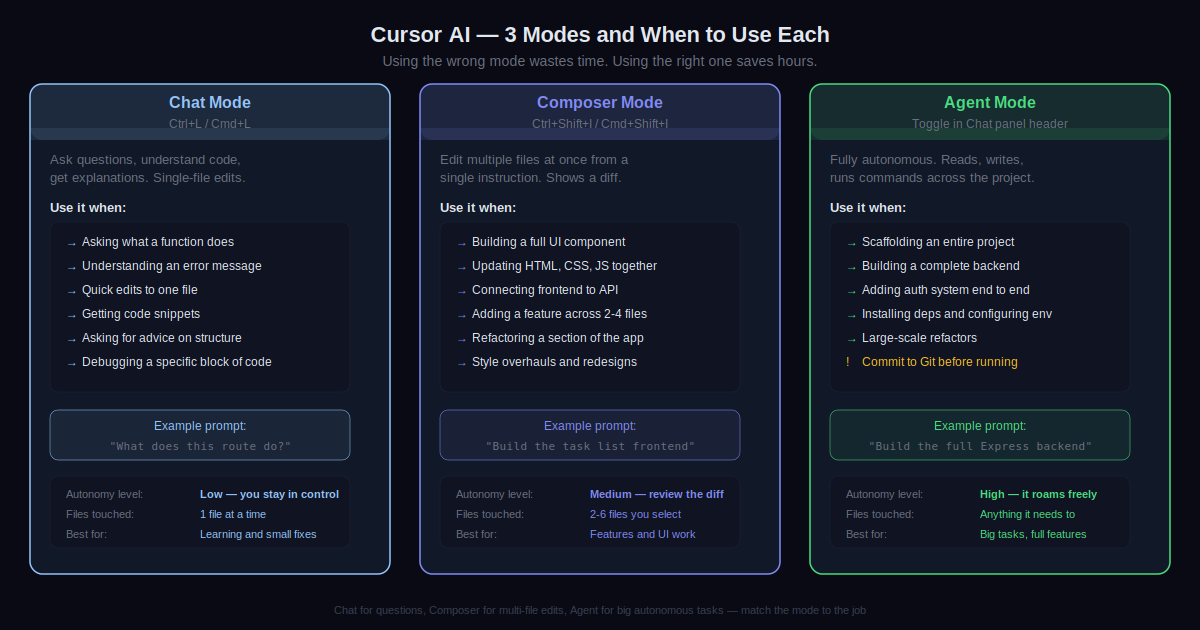
- The difference between Chat mode, Composer mode, and Agent mode, and when to use each one
- How to build a working frontend and backend for a Cursor AI web app using only prompts
- How to debug errors without spending hours Googling stack traces
- How to deploy your finished app so it has a real URL you can share
What You Need
- A computer running Windows, Mac, or Linux. Cursor works on all three.
- Node.js installed. Download it free from nodejs.org. This handles the backend runtime.
- A Cursor account. Free tier works for this entire guide. Go to cursor.com and sign up.
- A Netlify or Vercel account. Both are free for personal projects. You’ll use one for deployment at the end.
- Basic comfort with file systems. You don’t need to know how to code. But knowing what a folder is and how to open a terminal helps.
Quick note on Cursor’s pricing: the free plan gives you 2,000 code completions and enough AI requests to finish this project with room to spare. The Pro plan at $20/month unlocks 500 premium requests per month if you’re going to use this daily. For now, free is fine.
Step 1: Install Cursor and Set It Up Right
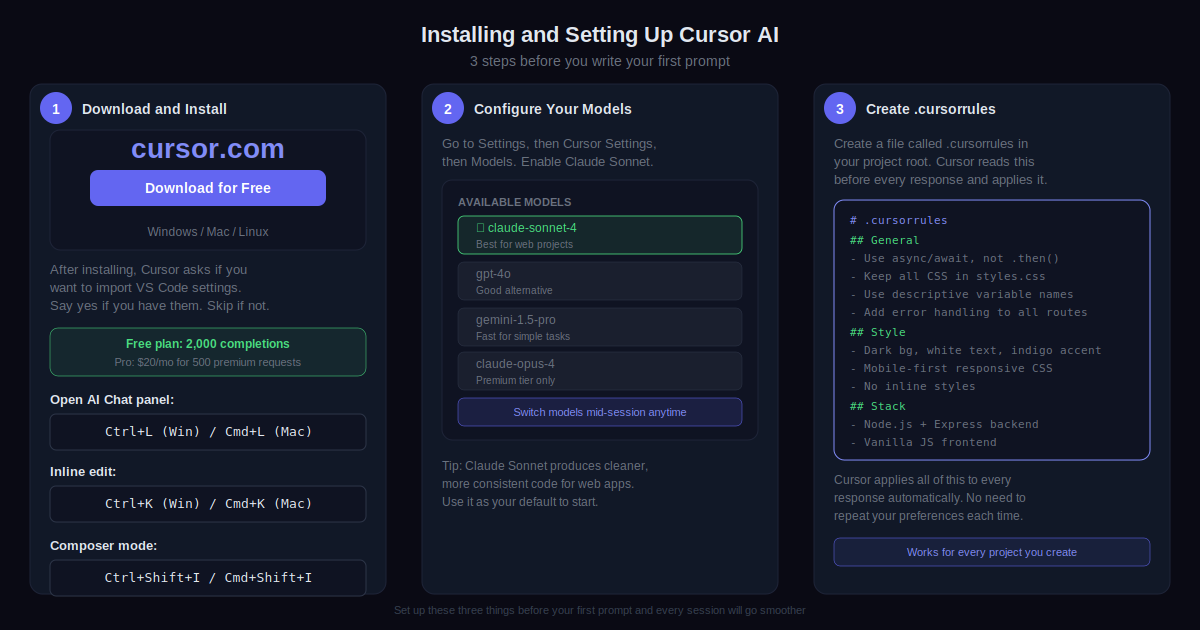
Go to cursor.com and hit Download. Run the installer. When it opens for the first time, Cursor asks if you want to import your VS Code settings. If you have them, say yes. If not, skip it.
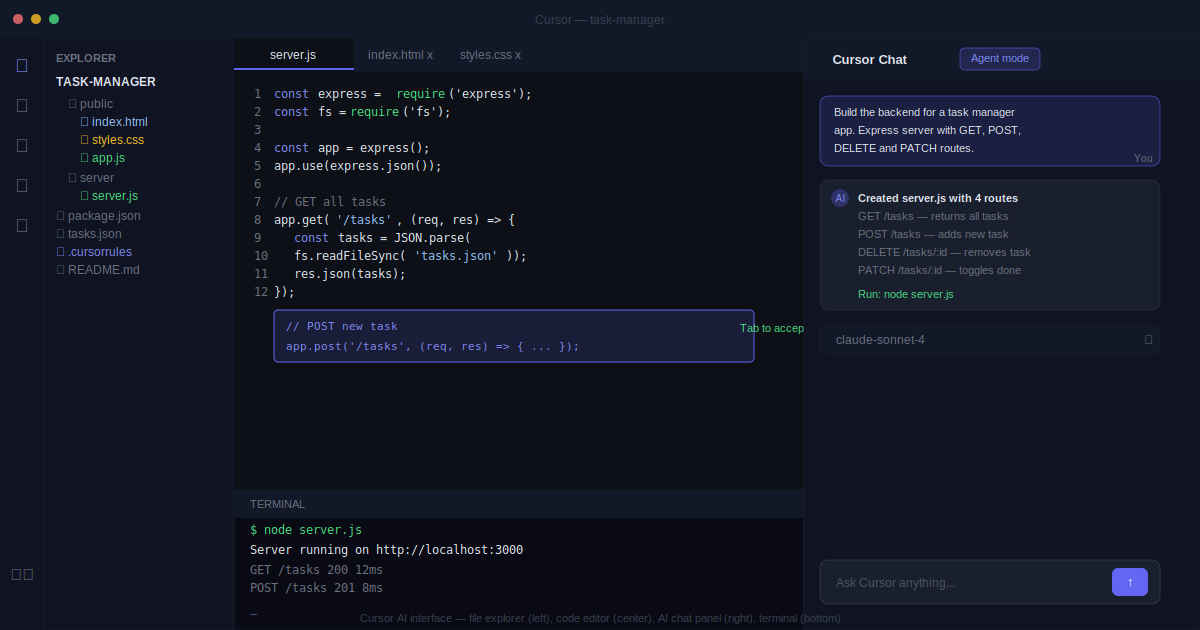
Once inside, look at the layout. Left sidebar for files. Main area for code. And on the right, or accessible via Ctrl+L (Windows) or Cmd+L (Mac), the AI Chat panel. This chat panel is where most of your interaction happens. Get familiar with where it is before you do anything else.
One setting worth changing immediately: go to Settings, then Cursor Settings, then Models and make sure Claude Sonnet is enabled as one of your model options. Cursor runs on multiple AI models and Claude tends to produce cleaner, more consistent code than the alternatives for web projects. You can switch between them mid-session using the dropdown at the top of the chat panel.
Step 2: Plan Your App Before You Prompt Anything
This is the step most tutorials skip. And it’s why most people’s Cursor sessions turn into a mess of half-built features and broken dependencies after an hour.
Before you open the chat panel, write down three things: what the app does, what pages or screens it has, and what data it stores. That’s it. You don’t need a full spec. But you need enough clarity to give Cursor a real brief instead of a vague idea.
For this guide, we’re building a task manager. Here’s the brief:
- What it does: lets a user add tasks, mark them complete, and delete them
- Pages: one main page with a task list and an input field at the top
- Data: task text, completion status (done or not done), creation date
- Stack: HTML, CSS, and vanilla JavaScript for the frontend. Node.js and Express for the backend. JSON file for storage (no database setup needed for a first project).
Write your own version of this before the next step. The more specific you are, the better the output will be. “Build me an app” is not a brief. “Build me a task manager with these exact features and this stack” is.
Step 3: Set Up Your Project Folder and Ask Cursor to Scaffold It
Create a new folder on your computer. Call it something like task-manager. Open Cursor. Go to File, then Open Folder, and select that folder. You now have an empty project open in Cursor.
Open the Chat panel with Ctrl+L or Cmd+L. Type this as your first prompt:
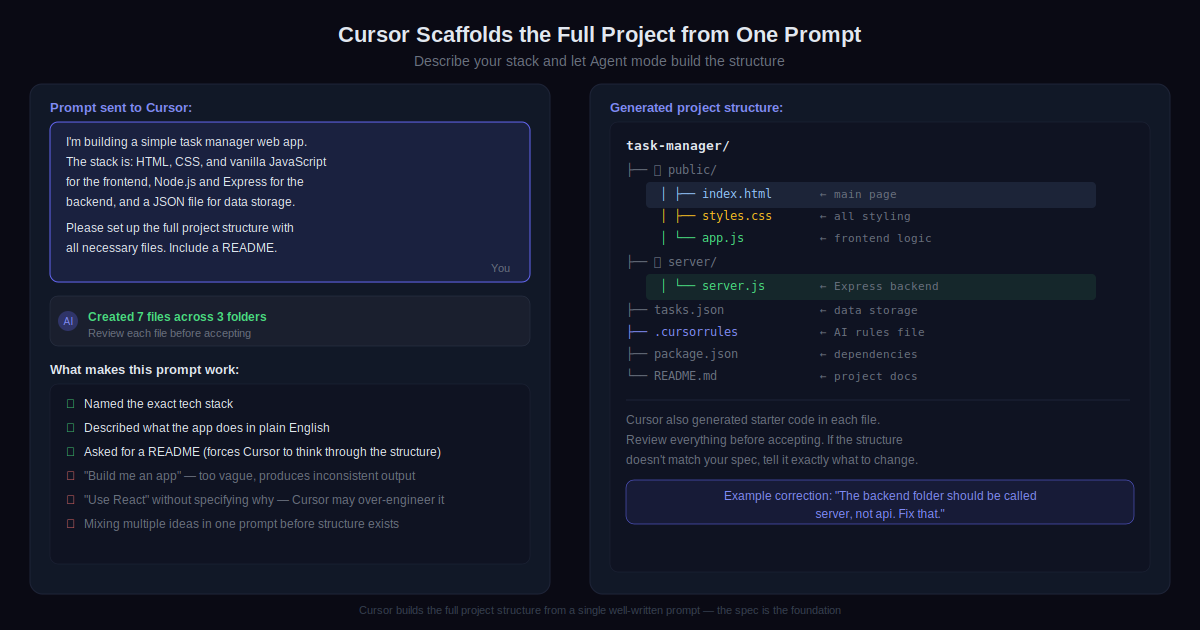
I'm building a simple task manager web app. The stack is: HTML, CSS, and vanilla JavaScript for the frontend, Node.js and Express for the backend, and a JSON file for data storage. Please set up the full project structure with all necessary files and folders. Include a README describing what each file does.
Cursor will generate a file tree and write the initial code for each file. Review what it proposes before accepting. You don’t need to understand every line. But make sure the file names and folder structure match what you asked for. If something looks off, tell it: “The backend folder should be called server, not api. Fix that.”
Step 4: Build the Frontend with Composer Mode
Now we switch to Composer mode. This is different from the Chat panel. Composer lets Cursor edit multiple files at once based on a single instruction. Open it with Ctrl+Shift+I or Cmd+Shift+I.
In Composer, type:
Build the frontend for the task manager. The main page should have: an input field and an Add Task button at the top, a list below showing all tasks, each task showing the text, a checkbox to mark it complete, and a delete button. Completed tasks should appear with a strikethrough. Style everything with clean, minimal CSS. Dark background, white text, indigo accent color for buttons.
Cursor writes the HTML and CSS across the relevant files simultaneously. When it finishes, it shows you a diff of every change. Review each file. Hit Accept if it looks right. If the styling isn’t what you wanted, describe the specific change: “Make the buttons smaller” or “Use a lighter shade for the background.” Don’t rewrite the prompt from scratch. Just refine.
Open your index.html file in a browser to preview it. No server needed yet. Just drag the file into a browser window. Does it look roughly like what you described? Good. Move on.
Step 5: Build the Backend with Agent Mode
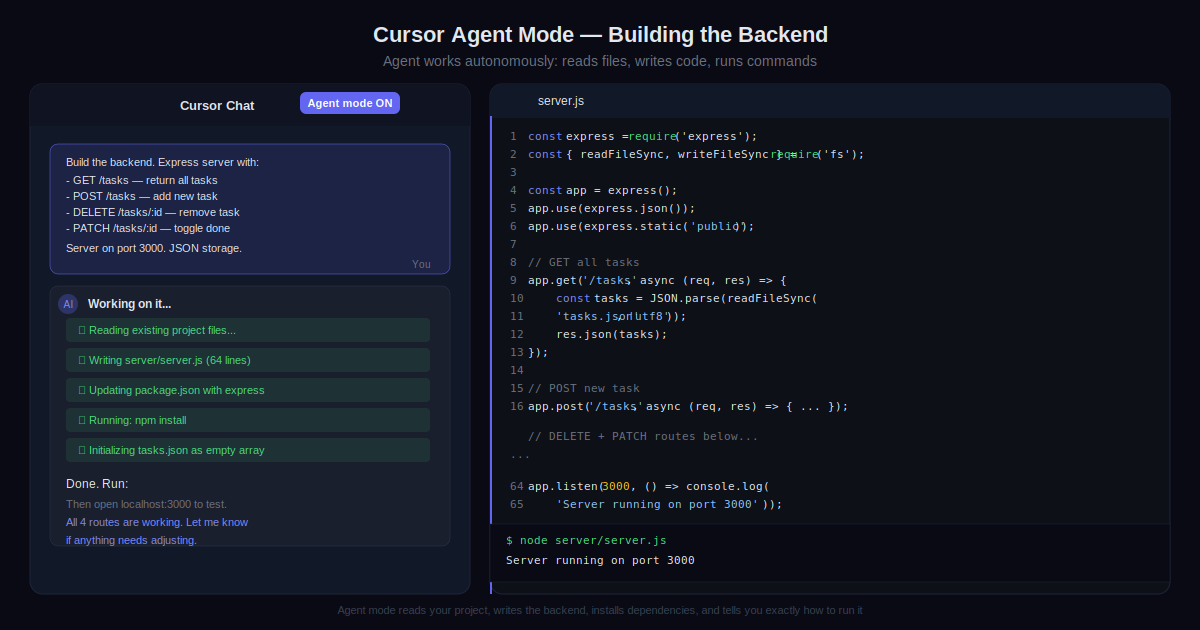
Agent mode is the most powerful thing in Cursor. Unlike Chat or Composer, Agent mode lets the AI work autonomously across your entire project. It reads files, writes code, runs commands, and checks its own output. You give it a goal and it figures out the steps.
Open the Chat panel and switch to Agent mode using the toggle at the top. Then type:
Build the backend for this task manager app. Create an Express server that: serves the frontend files, handles GET /tasks to return all tasks from tasks.json, handles POST /tasks to add a new task, handles DELETE /tasks/:id to delete a task, and handles PATCH /tasks/:id to toggle a task's completion status. Initialize tasks.json with an empty array if it doesn't exist. Make the server run on port 3000.
Agent mode will write the server file, update the package.json with the required dependencies, and may even run npm install automatically. Watch what it does in the terminal panel at the bottom of Cursor. If it stops and asks you a question, answer it directly in the chat.
Once it’s done, run the server yourself. Open the terminal in Cursor with Ctrl+` and type node server.js. Open your browser and go to localhost:3000. Your app should load.
Step 6: Connect Frontend to Backend and Fix Bugs
Right now your frontend and backend exist separately. The buttons don’t do anything real yet. We need to wire them up.
Go back to Composer mode and type:
Update the frontend JavaScript to connect to the backend API. The app should: fetch all tasks from GET /tasks on page load and render them, send a POST request to /tasks when the user clicks Add Task, send a DELETE request to /tasks/:id when the user clicks the delete button, and send a PATCH request to /tasks/:id when the user clicks the checkbox. Refresh the task list after every action.
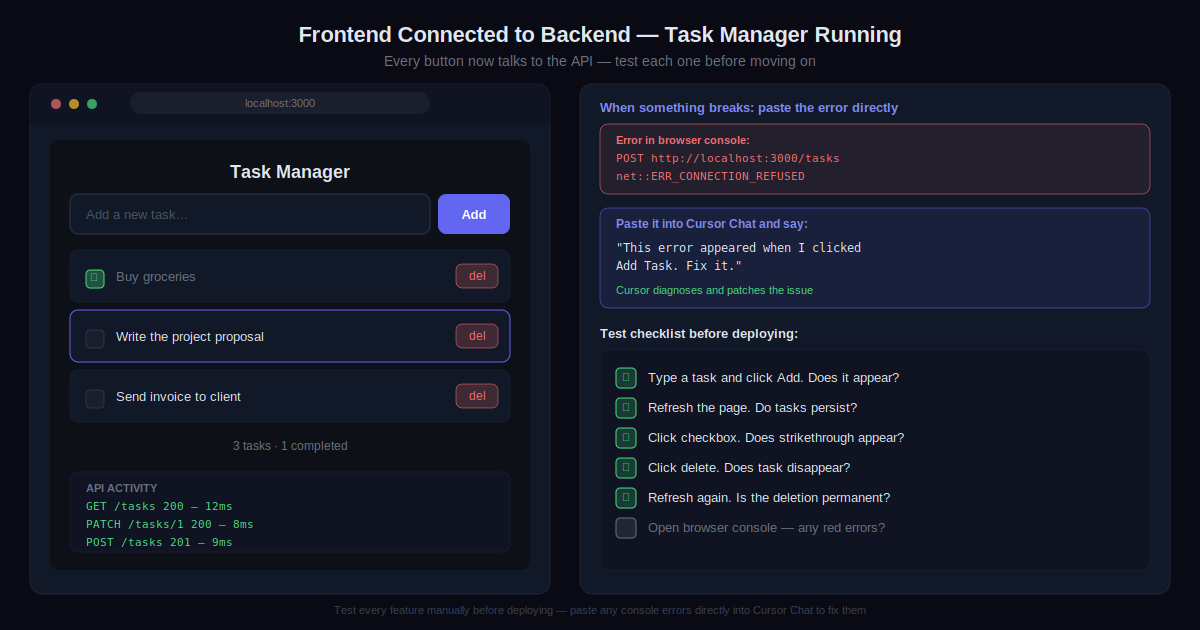
Test every button after this. Click Add Task, type something, submit it. Does it appear? Click the checkbox. Does the strikethrough appear? Click delete. Does it disappear and stay gone when you refresh?
If something breaks, copy the error from the browser console or the terminal and paste it directly into the Chat panel. Don’t try to describe the error from memory. Paste the exact text. Then ask: “This error appeared when I clicked Add Task. Fix it.” Cursor reads the error, finds the relevant file, and patches the issue. Most errors at this stage are small: a missing semicolon, a wrong variable name, a URL that doesn’t match the route.
Step 7: Deploy Your Cursor AI Web App
You have a working app. Now give it a real URL.
The simplest option for a project like this is Netlify for the frontend and a service like Railway or Render for the backend. But for a beginner project where you just want something live fast, Netlify can handle both if you convert the backend to serverless functions. That sounds complicated. It’s not. Ask Cursor to do it:
I want to deploy this app to Netlify. Convert the Express backend to Netlify serverless functions. Create a netlify.toml config file. Restructure any folders as needed. The frontend should still be served from the root.
Cursor rewrites what needs rewriting and creates the config file. Then:
- Go to
netlify.comand log in - Click “Add new site” then “Deploy manually”
- Drag your project folder into the upload area
- Netlify builds and deploys it in about 30 seconds
- You get a live URL like
your-app-name.netlify.app
Share that URL. That’s your app. Built with prompts, not hand-typed code.
Pro Tips
- Use .cursorrules to set permanent instructions for your project. Create a file called
.cursorrulesin your project root and write your preferences inside it. Something like “always use async/await instead of .then()” or “keep all CSS in a single file.” Cursor reads this file before every response and applies it automatically. It’s like Custom Instructions but for your codebase. - Commit your code to Git before every major Agent mode session. Agent mode can touch a lot of files at once. Most of the time it does the right thing. Occasionally it doesn’t. Having a clean commit you can roll back to takes 10 seconds and saves you from rebuilding something that was working fine.
- Paste errors directly. Never describe them. I see people type “it’s showing a red error about something with undefined.” That tells Cursor almost nothing. Copy the full error text, paste it, and ask for a fix. The more exact the error, the faster the fix.
- Use Chat mode for questions, Composer for multi-file edits, Agent for big tasks. Mixing them up wastes time. If you want to ask what a function does, use Chat. If you want to update three files at once, use Composer. If you want to add an entire authentication system, use Agent.
- Name your files and variables clearly before the AI touches them. Cursor is dramatically better at working with a codebase that uses clear, descriptive names. A file called
taskController.jsis easier for the AI to reason about than one calledstuff.js. This sounds trivial. It makes a real difference over a multi-hour session. - Ask Cursor to explain code before accepting it. Especially in Agent mode. After a big code generation, ask: “Walk me through what this server file does section by section.” Understanding your own codebase means you can give better prompts next time and catch it when something looks wrong.
Common Mistakes to Avoid
- Starting without a plan and watching the session spiral. The single biggest reason Cursor sessions go wrong is vague goals. “Build me something cool” produces messy, inconsistent code that falls apart when you try to extend it. Spend 10 minutes writing down exactly what you’re building before you open the chat. That 10 minutes saves 2 hours of cleanup.
- Accepting every code change without reviewing the diff. Cursor shows you what it changed before you accept it. Use that. Especially in Agent mode, where it might touch files you weren’t expecting it to touch. One misplaced edit in a config file can break everything downstream, and it’s much easier to spot in a diff than to diagnose after the fact.
- Adding features before the core works. A lot of people get excited and start asking for user authentication, dark mode, and email notifications before the basic app even runs. Build the core first. Get it working end to end. Then add features one at a time. Cursor works best when it’s extending a stable base, not patching a half-built mess.
- Ignoring the terminal output. Cursor’s Agent mode often runs commands and shows you the results in the terminal panel. Beginners scroll past this. That output tells you if something installed correctly, if the server started, and if there are warnings you should know about. Read it. It takes five seconds.
- Using Cursor as a replacement for understanding, not a tool for building faster. If Cursor generates an API route and you have no idea what an API route is, that’s fine for now. But at some point you need to understand enough to review its work. The goal isn’t to never learn anything. It’s to build faster while you learn. If something comes out of Agent mode that you genuinely don’t understand, ask Cursor to explain it before moving on.
You just built and deployed a web app from scratch using only prompts. That’s not nothing. A lot of people who’ve been “meaning to learn to code” for years haven’t done what you just did.
From here, the best thing you can do is extend this same project rather than starting something new. Add a feature. Maybe due dates on tasks. Maybe the ability to filter by completed vs. active. Maybe a simple login so only you can access your tasks. Ask Cursor for each one using the same process: describe the feature specifically, use the right mode for the job, review the diff, test it, fix what breaks.
Once that feels comfortable, try building something from a blank brief. Pick a real problem you have, write a one-page spec, and go. You now know the workflow. The tool doesn’t change. The projects do.
One more thing. Set up a .cursorrules file if you haven’t yet. The more sessions you have with Cursor, the more you’ll discover your own preferences: how you like code structured, what naming conventions you prefer, which libraries you keep reaching for. Put all of that in the rules file. Over time it makes Cursor feel like it knows you, because it does.