My friend Sara runs a small consulting firm. Sharp person. Good at her job. And she was spending two to three hours every single day just managing email, writing follow-up summaries, and looking things up she half-remembered from last week’s meeting. Not doing the work. Managing paperwork around the work. I sat with her for 90 minutes, set up four AI productivity tools, and watched her face the next morning when she ran through her whole routine in 40 minutes. “Why didn’t anyone tell me about this?” she said.
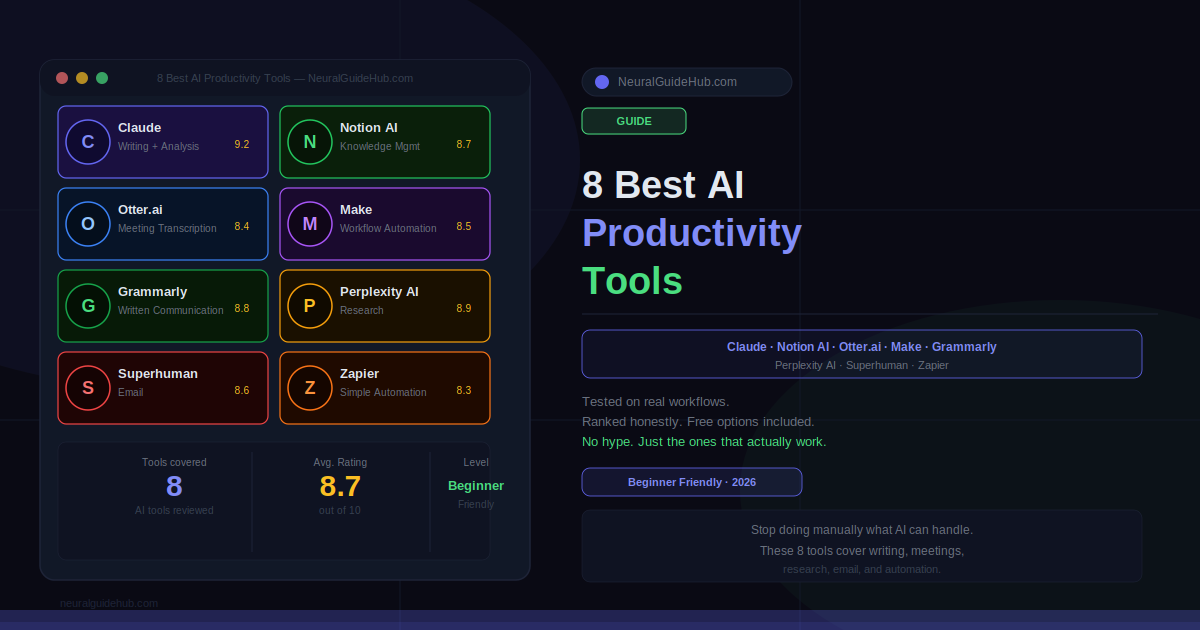
Nobody tells you. You hear about AI in the abstract. But the specific combination of tools that actually fixes the specific things eating your day? That’s harder to find. Here’s what actually works, from someone who has tested most of what’s out there.
What You’ll Learn
- Which AI productivity tools save real time versus the ones that just demo well
- How each one fits into an actual work week, not a theoretical workflow someone invented for a slide deck
- Honest pricing — what the free tier actually gives you, and when paying makes sense
- How to connect tools together so they work as a system, not eight separate browser tabs
- Where to start if you’re new to all this and don’t want to waste the first week on the wrong thing
- What each tool is genuinely bad at, because every one of them has a ceiling
What You Need
Nothing technical. Every tool here is built for professionals, not engineers. A browser, maybe a Google or Microsoft account for a couple of integrations, and an honest answer to one question: which task in my workday costs the most time and requires the least actual thinking? That question points directly at where to start.
- A modern browser. All of these are web-based or have extensions.
- Google or Microsoft account for Otter.ai, Notion, and a few other integrations
- 20 minutes to properly set up each tool before expecting results from it
- Some actual follow-through. Tools don’t save time if you try them once and go back to what you were doing.
1. Claude — Best AI Productivity Tool for Thinking, Not Just Writing
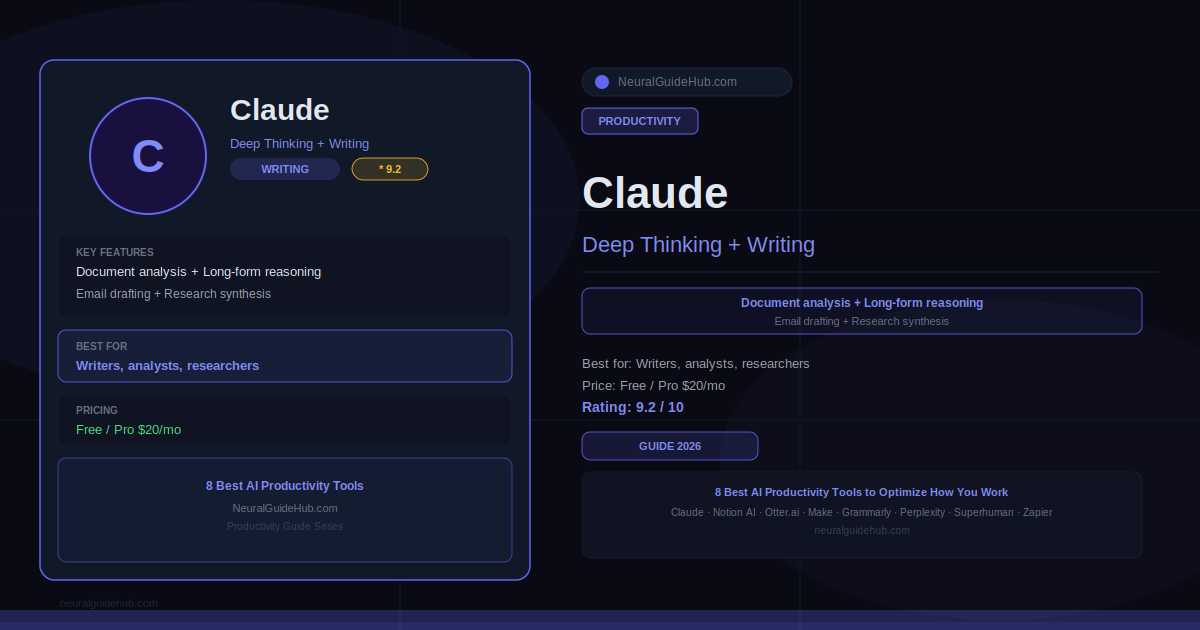
Most people try Claude by asking it to write something generic and get something generic back. That’s not what it’s built for. Feed it a 60-page vendor contract and ask which three clauses create the most risk. Give it six months of customer feedback and ask what the underlying pattern is. Paste in a messy meeting transcript and ask what the actual decision was. That’s where it earns its place.
Synthesis is where it saves me the most time. Taking large amounts of information and compressing them into something I can actually act on. A job that used to take two hours of careful reading now takes 20 minutes of reviewing output and correcting anything that’s off. I still check the work. The starting point is just dramatically better than a blank page.
Best for: Writers, analysts, researchers, consultants — anyone whose job involves processing more information than there’s time to read properly.
Free tier: Real and usable at claude.ai. You’ll hit limits with heavy use, but plenty to evaluate properly.
Paid: $20/month for Pro. The upgrade makes sense the moment limits start frustrating you.
2. Notion AI — Best for Not Losing What Your Team Already Knows
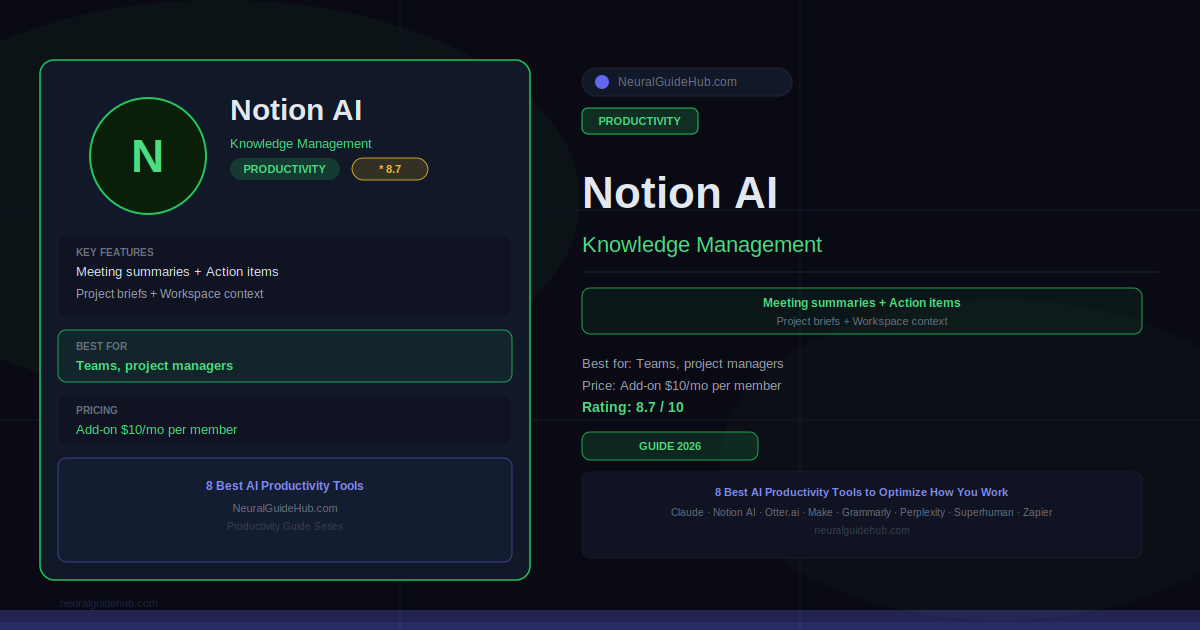
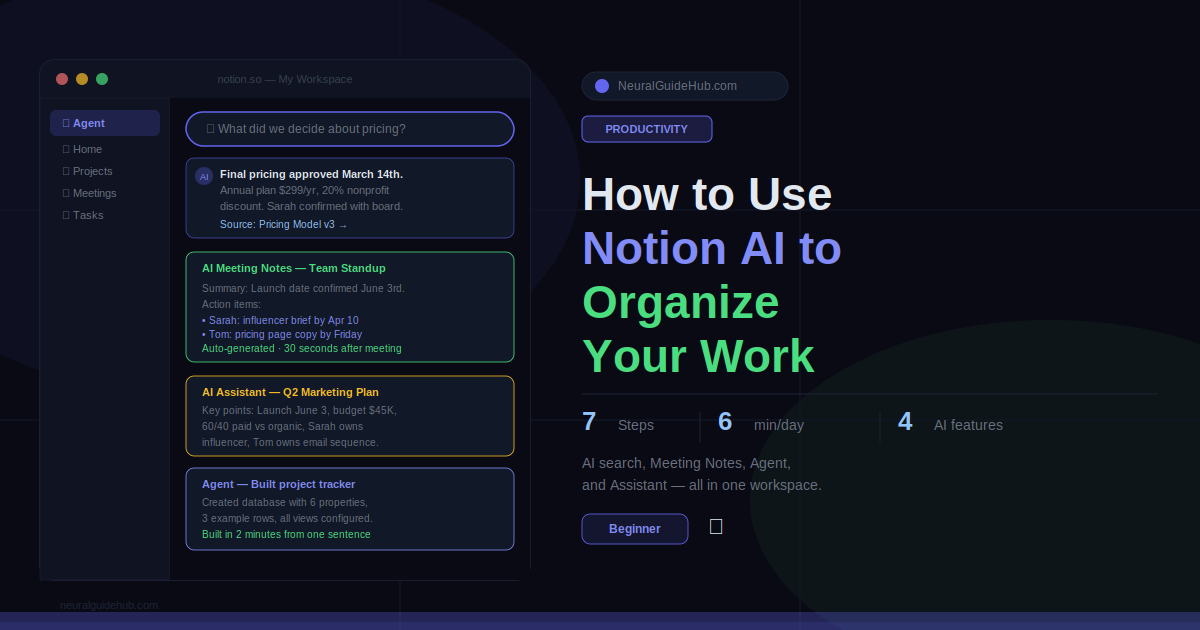
The reason Notion AI outperforms just using Claude for the same tasks is context. It knows your workspace. Your projects, your past decisions, the document your team wrote eight months ago that nobody remembers exists. When it helps you draft a project brief, it pulls from what’s actually been built rather than generating something from scratch. That awareness is the feature most reviews gloss over. It’s also the one that changes how useful the tool actually is in practice.
Meeting note summarization is the quickest win. Notes arrive as a wall of text. Two clicks later you have a structured summary with action items and owners. Teams that use this consistently stop writing manual recaps entirely. Nobody misses it.
Best for: Teams managing projects and documentation together. Also good for solo knowledge workers already living in Notion.
Free tier: Limited AI queries. Enough to test properly before committing.
Paid: $10/month per member. Cheap for what it does inside an existing workflow.
3. Otter.ai — Best for Being Actually Present in Meetings
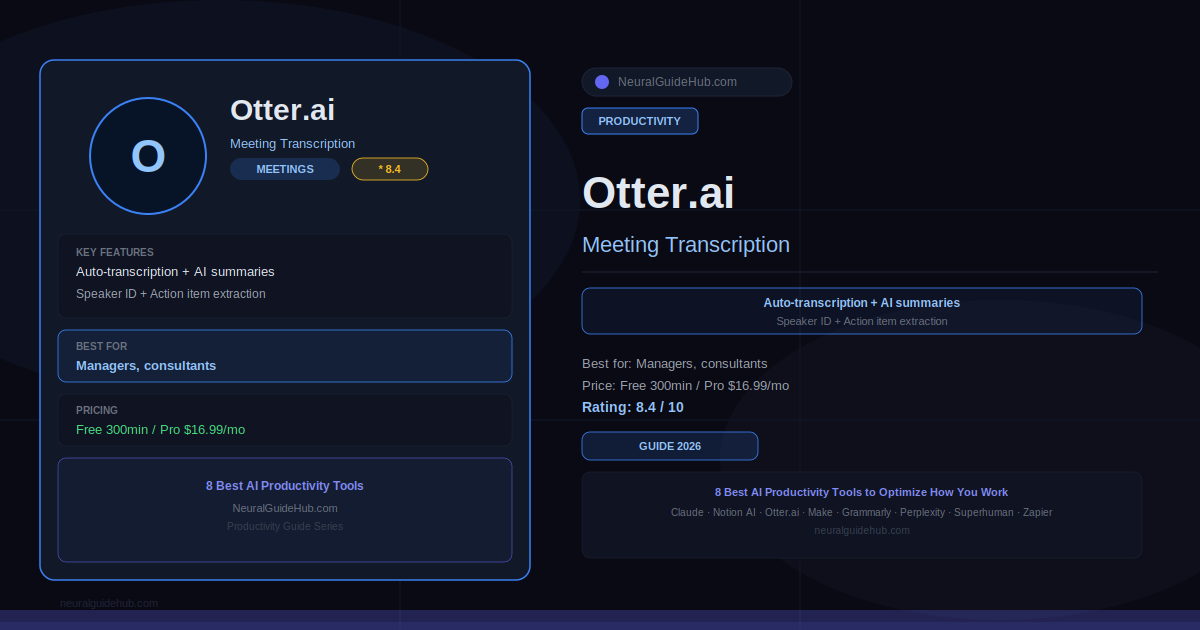
Slightly uncomfortable truth: most people in meetings are either paying attention or taking notes. Not both. The person typing furiously isn’t fully tracking the conversation. The person not typing forgets half of what was decided by Thursday. Otter.ai removes that tradeoff by handling the transcription while you handle the meeting.
It joins, listens, transcribes, summarizes, extracts action items. Before your post-meeting coffee is done the summary is sitting in your inbox. Not perfect — speaker identification gets confused in large groups and some accents cause problems. But consistently good enough that the manual note-taking habit becomes unnecessary for most people within a week.
Best for: Managers, consultants, salespeople. Anyone running or sitting through three-plus meetings per day.
Free tier: 300 minutes per month. About 10 to 15 meetings depending on length.
Paid: $16.99/month. Once you’re regularly hitting the free limit the upgrade is obvious.
4. Make — Best When You’ve Done the Same Steps Thirty Times Too Many
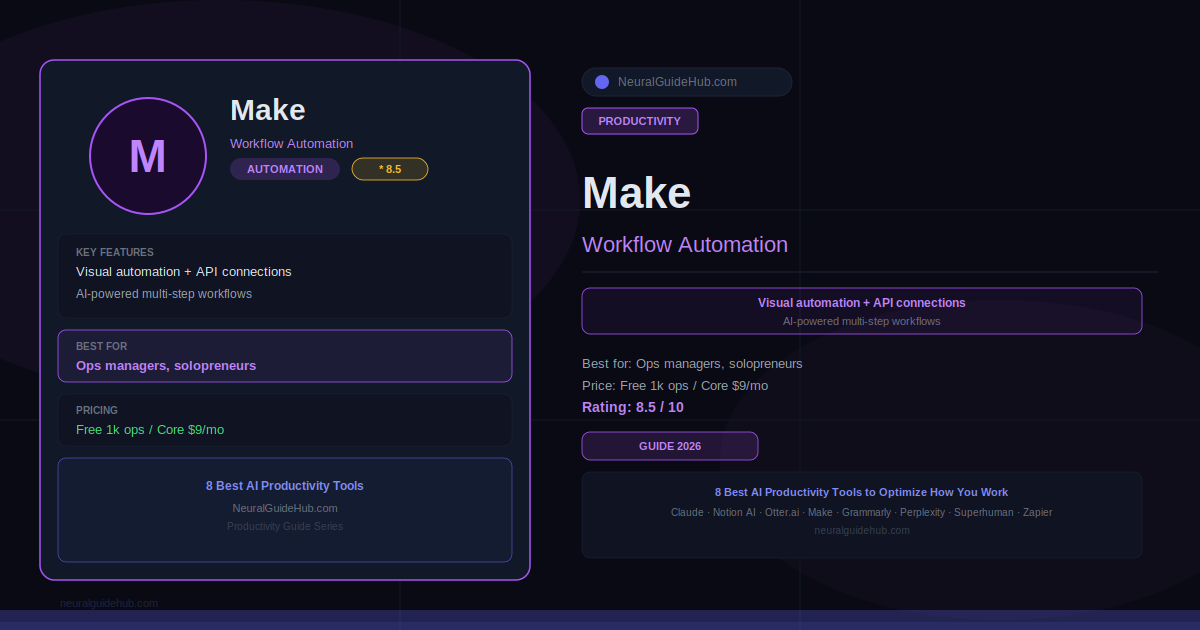
At some point you realize you’ve done the exact same sequence of manual steps thirty times. New client submits a form. You copy their details to the CRM. You send a welcome email. You create a project task. You post to Slack. Every time. That sequence should not involve a human. Make removes you from it entirely.
It’s more powerful than Zapier and harder to start with. The first few hours feel like a wall. Get through it. Once the logic clicks, what you can build is impressive. Pair it with an AI API step and you move from data pipelines to intelligent workflows, ones that can reason about what they’re processing.
Best for: Ops managers, solopreneurs, anyone with repetitive cross-app workflows running at volume.
Free tier: 1,000 operations per month. Enough to build and validate a few automations before paying.
Paid: $9/month for Core. Excellent value for the power level.
5. Grammarly — Best for Communication That Doesn’t Misfire
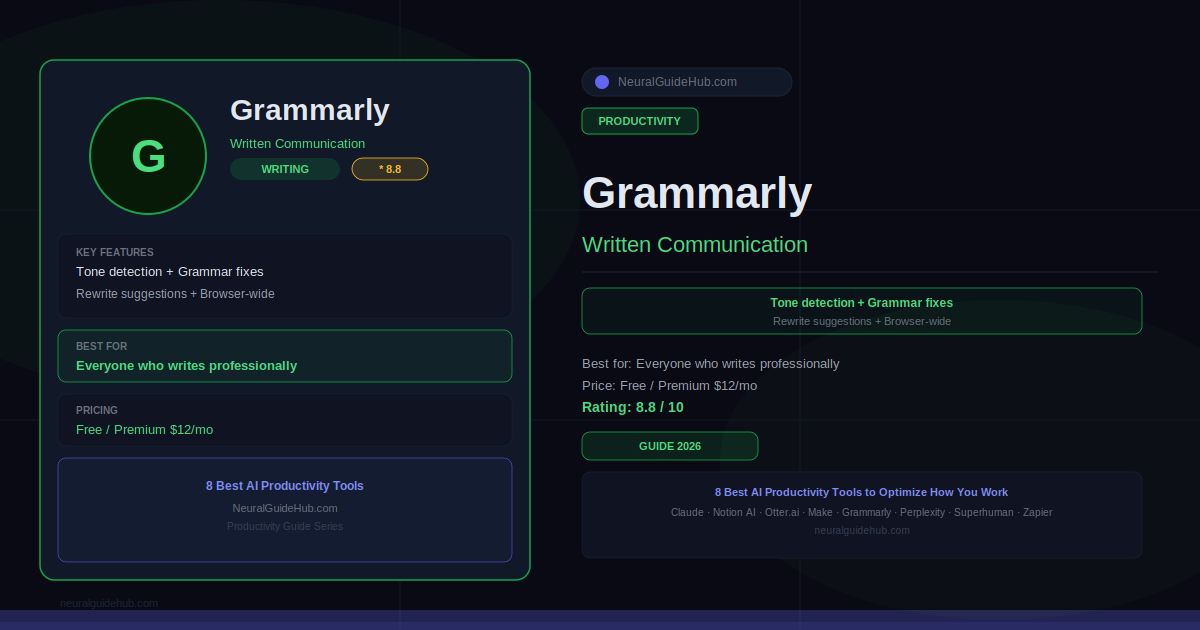
People stopped paying attention to Grammarly because they used it five years ago when it was basically a spellchecker. That’s not what it is anymore. The tone detection is the feature worth caring about now. It catches the email that sounds passive-aggressive when you meant direct. The Slack message that reads as curt when you were just being brief. The report section that’s technically accurate but lands as condescending. Catching those before you send them is genuinely valuable.
Install it as a browser extension and stop thinking about it. It covers Gmail, Slack, Google Docs, LinkedIn, any text input in your browser. After the first week you don’t notice it’s there. You just write better without trying harder.
Best for: Everyone who writes professionally. Especially useful if English isn’t your first language or you communicate regularly with senior stakeholders.
Free tier: Actually solid. Basic corrections and some rewriting are genuinely free.
Paid: $12/month for Premium. Tone detection and full AI rewrites are behind the paywall.
6. Perplexity AI — Best for Research Where Being Wrong Has Consequences
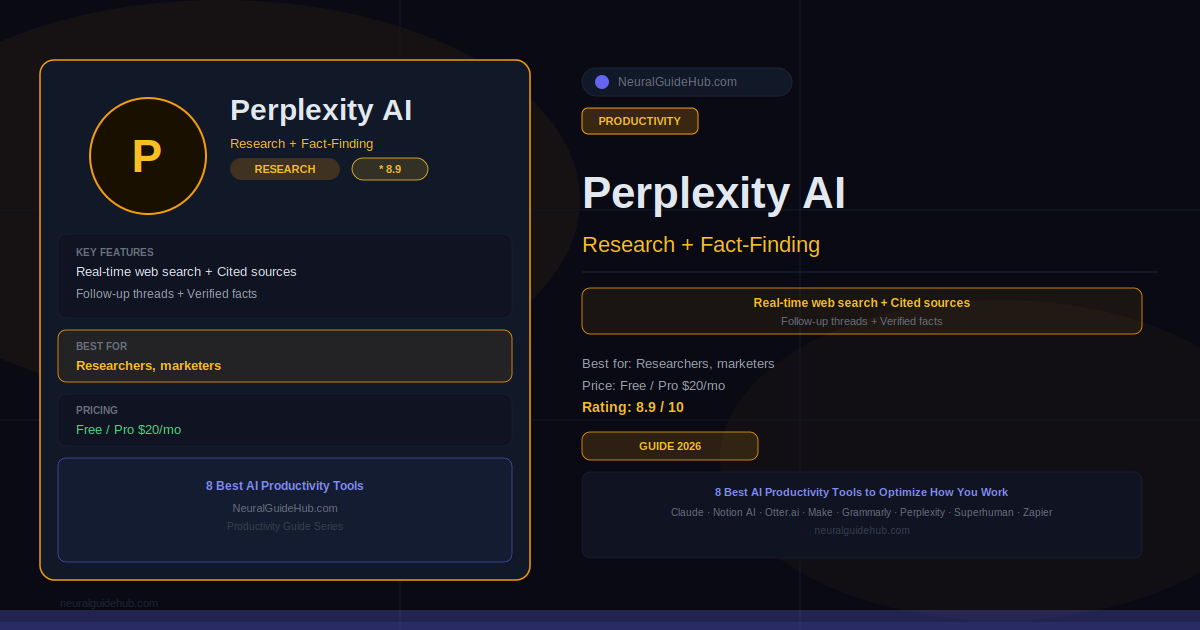
Standard AI chatbots have one specific problem that’s easy to overlook until it burns you: they generate confident-sounding information that is sometimes just wrong. Made-up statistics. Fabricated citations. Plausible-sounding claims with no basis in reality. For anything published, sent to a client, or used to make a real decision, that’s a problem. Perplexity searches the live web and shows you exactly which source each claim came from. You can click through and check. That single feature changes what you can actually trust it for.
For competitive research, market sizing, or staying current on something fast-moving, this is where I start. The follow-up thread feature builds context across questions the way a good research session should. You ask, get an answer, go deeper, and the previous context stays relevant.
Best for: Researchers, marketers, journalists, consultants — anyone where information accuracy has real stakes.
Free tier: Available with daily limits. Enough to evaluate it properly.
Paid: $20/month for Pro. GPT-4 access and no search limits.
7. Superhuman — Best for Email That Doesn’t Own Your First Two Hours
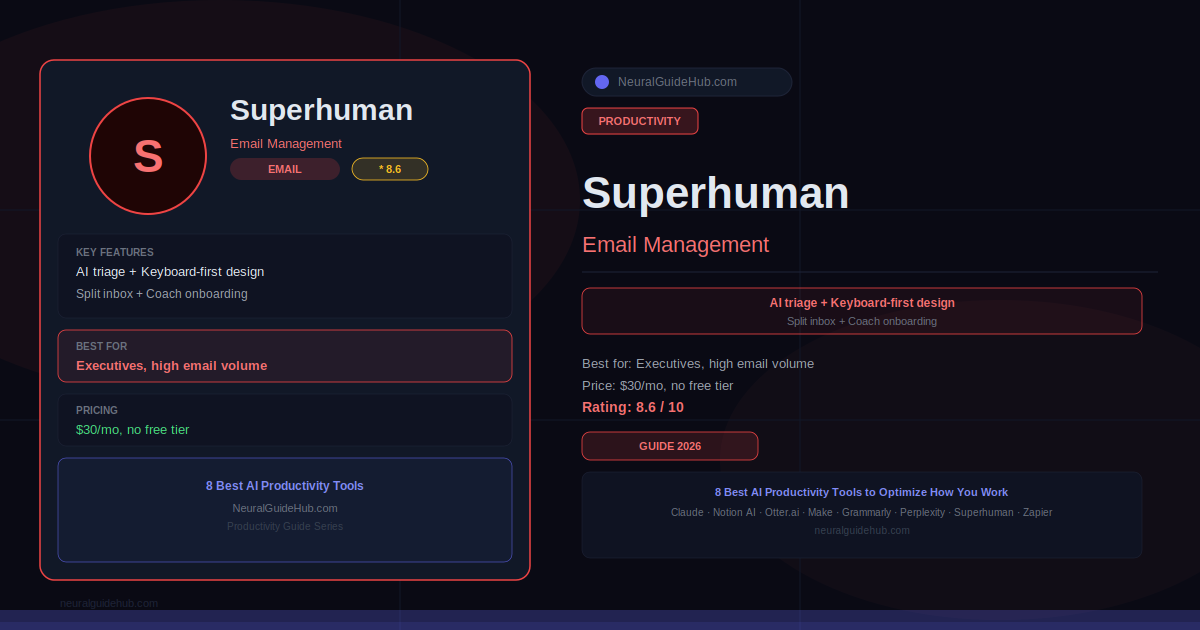
$30 a month for an email client sounds absurd. I know. But here’s the calculation that changes things: if you spend 90 minutes a day on email and Superhuman cuts that to 45 minutes, that’s roughly 180 hours back per year. At any professional rate, $360 annually is not the number that matters. The keyboard-first design means no mouse for most email tasks. After a week of using it, going back to a normal email client feels like moving through sand.
The AI triage learns your inbox over time and surfaces the things that actually need you. Everything else gets handled or deprioritized. The onboarding includes a one-on-one session with a human coach. Sounds excessive. It isn’t. The shortcuts need to become muscle memory and that session makes it happen faster.
Best for: Executives, founders, consultants. Anyone for whom email is a genuine time problem, not just a mild annoyance.
Free tier: Doesn’t exist. It’s a fully paid product.
Paid: $30/month. Makes sense only if email is costing you significant time every day.
8. Zapier — Best for Automation Without the Headache
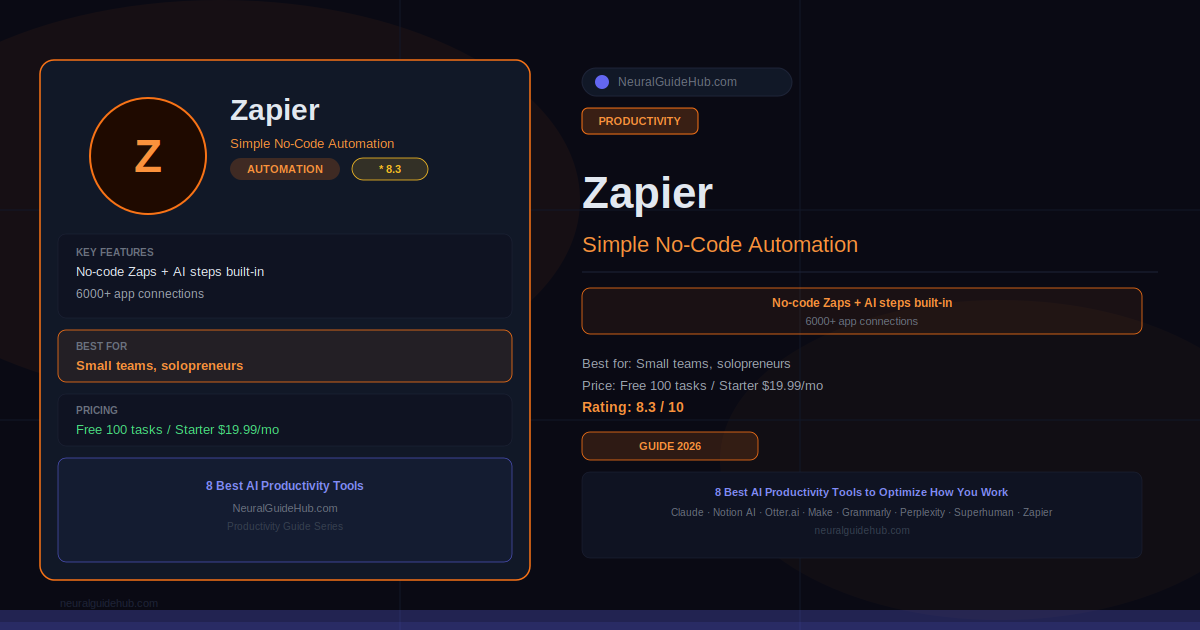
Make is for people who want maximum flexibility and will invest real time learning the tool. Zapier is for people who want something working in 15 minutes. Both have a place. If you’re new to automation, start here. Build confidence. Move to Make when you need something more powerful.
The AI steps now built into Zapier are worth knowing about separately. You can add intelligent processing inside a Zap. Run incoming data through an AI model to classify it, summarize it, extract specific fields, then pass the result to the next step. Simple logic plus AI processing covers more real-world workflows than the description suggests.
Best for: Small teams, solopreneurs, anyone who wants automation working quickly without a learning curve.
Free tier: 100 tasks per month. Enough to test a couple of Zaps, not enough to rely on.
Paid: $19.99/month for Starter. Good value just for the integration library.
Pro Tips
- Wire the tools together. The biggest gains aren’t from any single tool. They come from tools talking to each other. Otter transcribes the meeting, paste into Claude, Claude’s output goes into Notion, Make fires action items to your task manager. Four tools, one flow, zero manual steps between them.
- Start with your worst time drain. Not the most impressive tool on this list. The one that targets the specific task costing you the most hours. Fix that before adding anything else.
- Context is the skill that separates good results from great ones. “Summarize this” is a weak prompt. “Summarize this for a non-technical VP making a budget decision by Friday” is a strong one. Learning to add context changes everything about how useful these tools are.
- Perplexity finds facts. Claude thinks about what they mean. Stop using them interchangeably. They’re genuinely different tools for different parts of a workflow.
- Grammarly on everywhere, not just important emails. The compounding effect on your communication quality over a year is real and measurable.
- Build simple automations before chasing advanced features. Five basic Zapier or Make workflows save more real time than any advanced feature in any tool on this list. Start simple.
Common Mistakes to Avoid
- Setting up all eight tools in the same week. This is how people end up using none of them. Pick one. Use it for two weeks. Add the next one when the first feels natural.
- Sending AI output without reading it. Claude produces impressive work. It also makes mistakes. Review everything before it leaves your hands. That’s not paranoia, it’s just professionalism.
- Staying on free tier when the tool is actually working. If Otter keeps hitting the monthly cap and you’re getting real value from it, the $17 upgrade is not a hard decision. Crippling a tool that’s helping you to save $17 doesn’t make sense.
- Ignoring integrations between tools. The tools that connect to each other are worth more combined than the sum of their individual features. An hour spent wiring two tools together pays back faster than almost anything else on this list.
- Quitting after one bad output. Every AI tool has a prompting learning curve. The first result is rarely the best one. Iterate, add context, refine the request. The people who get real value from these tools are the ones who pushed past the first mediocre result.
Close this tab with one tool picked out. Not the most impressive one. The one that targets the task costing you the most time right now. Sign up, spend 30 minutes learning the interface, use it on something real today. Not a test. Something with actual stakes attached to it.
Once that tool feels natural, add a second. That’s the whole system. One layer at a time, connected to each other as you go.
Don’t know where to start? Claude handles the widest range of tasks on this list. Whatever your job involves, there’s something on your plate today that it can help with. Start there.